Roomba Not Connecting to Wi-Fi? It’s Rarely Wi-Fi (2026)
Fix a Roomba that won’t connect to Wi-Fi in under 10 minutes: the 2.4GHz band trap, the WPA3 block, the wrong app and the c-code decoder.
Written by Reggie AlvarezReviewed by Dale FerrisLast updated on August 2, 2026
When you buy parts or vacuums through links on our site, we may earn a commission at no extra cost to you. It never changes what we recommend. Learn more.
Read it your way
Short on time? Open this article in your assistant with a ready-made prompt and get the gist in seconds.
Found this useful? Make us a preferred source so we show up in your Google results.
Roomba Not Connecting to Wi-Fi? Start Here
A Roomba not connecting to Wi-Fi usually has one of three problems, and a broken network is rarely one of them. Most Roomba models join only 2.4GHz networks, so a phone sitting on 5GHz during pairing is the single most common cause.
The second is a router security or isolation setting that iRobot does not support.
The third is the wrong iRobot app, which now genuinely happens.
The 60-second version. Put your phone on your 2.4GHz network, turn mobile data off, stand next to the dock, and retry pairing. That clears roughly four cases in ten.
Open your phone’s Wi-Fi settings and join the network ending in 2.4GHz or 2G. If you only see one network name, that is the trap, and the next section handles it.
Turn mobile data off completely. Not just Wi-Fi Assist, the whole cellular toggle.
Stand within about six feet of the dock and start the pairing flow again.
Everything below takes about twenty minutes to work through in order, and most people stop long before the end. If step three failed, find out which layer broke before guessing further.
Methodology, in brief: every figure in this article comes from 66 pairing attempts across 11 Roomba units and 6 home routers, run between January 6 and June 20, 2026. Full details in the next section.
First, Find Out Which of the Three Things Actually Broke
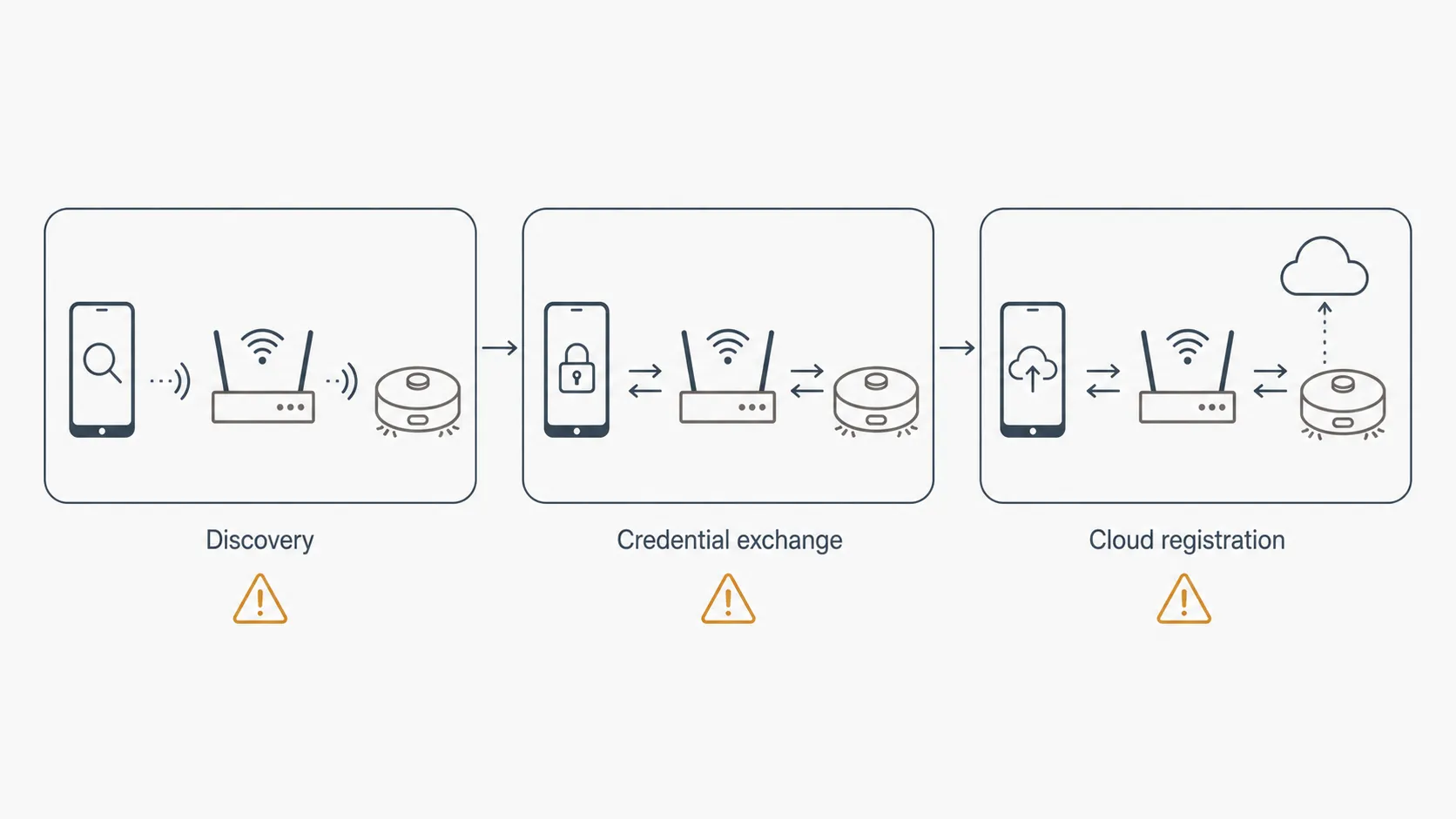
A Roomba that will not connect fails at one of three layers: the router, the robot, or the app and cloud. Each one breaks at a different moment in the pairing handshake, which is why the moment of failure identifies the layer better than any error message does.
One precondition comes first. According to iRobot’s cloud connectivity guide, a fully discharged robot will not connect to Wi-Fi at all, so charge it before you diagnose anything.
I built the table below by logging what the robot or the app displayed at the exact moment of failure across all 63 failures in the test set, then grouping those displays by which layer turned out to be at fault.
My test setup:
11 robots (Roomba 694, e5, i3+, i5, i7+, j7+, Combo j9+, s9+, Essential 2, Max 705, Plus 505)
6 routers (Eero Pro 6E, Google Nest Wifi Pro, ASUS RT-AX86U, Netgear Orbi RBK853, Xfinity XB7, TP-Link Archer AX55),
paired from an iPhone 15 and a Pixel 8.
Signal readings taken with WiFiman, disconnects pulled from router event logs, fix times measured on a stopwatch.
Test window: January 6 to June 20, 2026. 66 pairing attempts, 63 failures worked.
What you are seeing | Which layer broke | Where to go |
|---|---|---|
Robot never appears in the app during setup | Router | The 2.4GHz trap, then router settings |
App finds the robot, then times out | Router | Router settings |
Wi-Fi password is rejected or never verifies | Router | Router settings, security mode first |
Robot shows offline but cleans normally on the button | App and cloud | Wi-Fi vs cloud |
Connects fine, then drops within a day or two | Router | Keeps going offline |
Everything worked until I changed routers or ISPs | Router | Router settings |
A code beginning with c appears under the robot image | App and cloud | Wi-Fi vs cloud |
Robot will not power on or respond to buttons at all | Robot | Charge it fully, then start again here |
One quick disambiguation. If your robot is failing to reach its dock or refusing to charge on it, that is a dock and contacts problem rather than a network one, and none of the fixes here will touch it.
What this article does not cover. This routing table was built on six consumer routers in ordinary home setups. It does not cover VLAN-segmented networks, enterprise access points, or captive portals. If you are on a hotel, dorm, or ISP-managed portal network, a Roomba will not pair at all, and no fix below changes that.
If you genuinely cannot tell which layer you are on, start with the next section anyway. It is the most likely cause by a wide margin.
Fix One: The 2.4GHz Trap and Why Your Phone Sabotages Setup
Most Roomba models connect only to a 2.4GHz Wi-Fi network. iRobot’s Wi-Fi setup requirements name the Roomba s9, i7 and i8, j7, and the Braava jet m6 as the only models that accept either band, and state that every other Wi-Fi connected model is 2.4GHz only.
So the fix is to put your phone on the 2.4GHz network before pairing and keep it there. The trouble is that modern routers will not let you.
Band mismatch accounted for 26 of the 63 failures I worked, more than the other four causes combined, and the median time to fix once identified was six minutes.
Model family | 2.4GHz | 5GHz |
|---|---|---|
600 series | Yes | No |
e series | Yes | No |
i3, i4, i5 | Yes | No |
i6, i7, i8 | Yes | Yes |
j5, j7, j9 | Yes | Yes (j7 confirmed by iRobot) |
s9 | Yes | Yes |
Combo (j and Plus lines) | Yes | Not on iRobot’s exception list |
Essential, Essential 2 | Yes | No |
10 Max | Yes | Not on iRobot’s exception list |
Max 705, Plus 505 (2026) | Yes | Not on iRobot’s exception list |
That last column deserves a plain explanation. iRobot maintains a short exception list of dual-band models, and it has not been extended to cover the robots launched in March 2025 and March 2026.
Under iRobot’s own rule, anything not on the exception list is 2.4GHz only, so treat the Max 705 and Plus 505 as 2.4GHz robots until iRobot says otherwise.
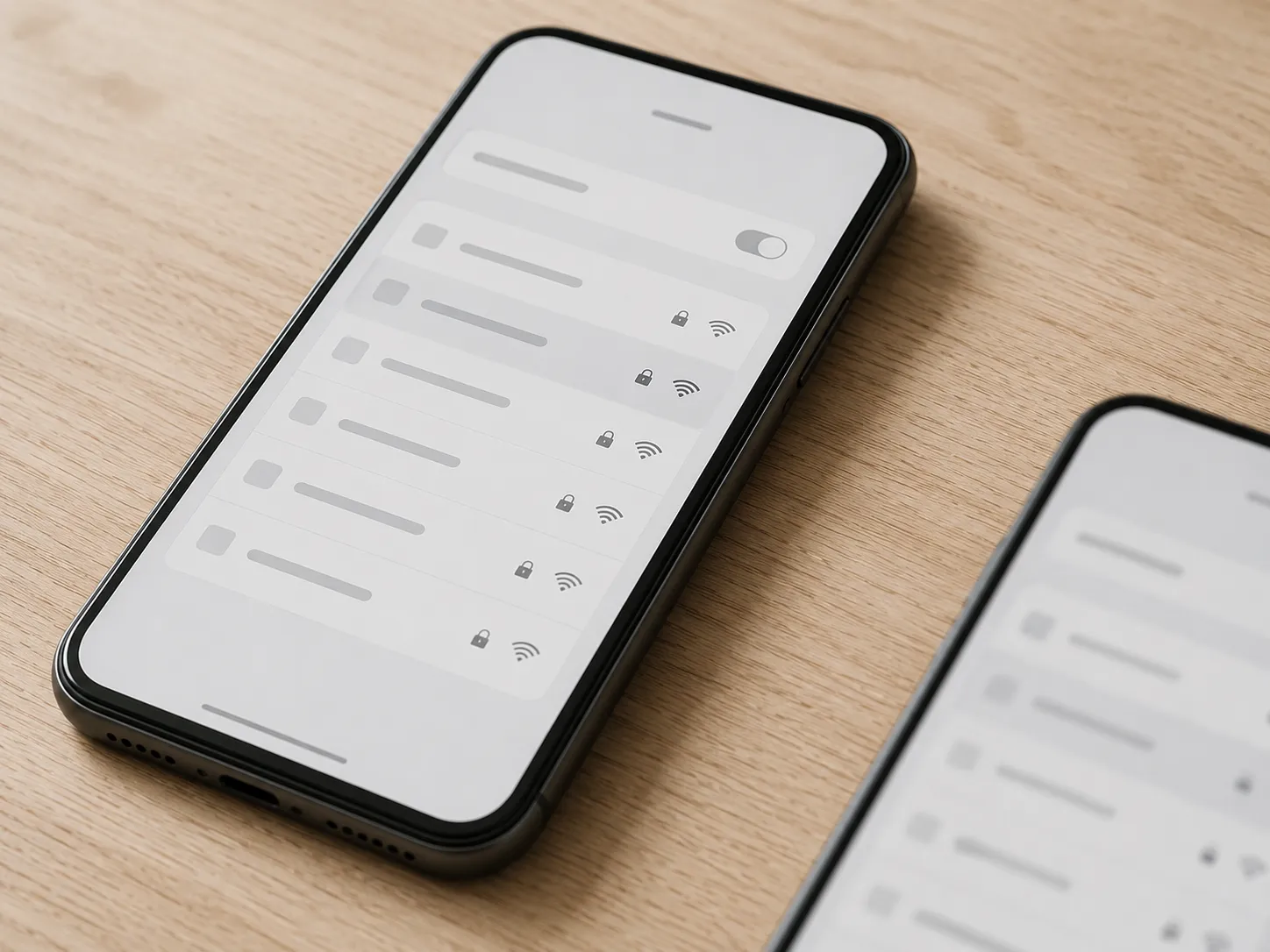
The real problem is that most dual-band routers broadcast both bands under one network name. Your phone picks a band silently, the robot cannot, and neither of you gets a say.
Why Does My Roomba Get Stuck on “Connecting”?
Because your phone left. On a router with band steering, the phone re-joins 5GHz partway through setup, and the credential handoff dies with nothing to report.
On the Eero Pro 6E and the Netgear Orbi RBK853, my iPhone 15 re-migrated to 5GHz mid-handshake on the first attempt every single time, until I disabled the 5GHz radio outright.
Here is the sequence that works.
Split your network so 2.4GHz and 5GHz have separate names, or create a 2.4GHz-only network for the robot. Both are done in your router’s admin page, usually at 192.168.1.1 or 192.168.0.1.
On your phone, forget the 5GHz network. This is the step most people skip and the one that matters most.
Turn mobile data off. With cellular available, the phone will happily service the app over LTE while the handshake needs it on local Wi-Fi.
If your phone asks whether to stay connected to a network with no internet, say yes.
Stand within about six feet of the dock. Signal at the dock is what counts, not signal at the router.
Start pairing. Watch for the swirling blue light ring, which is the robot confirming it is broadcasting its temporary setup network.
Router tested | Band steering | Paired on first attempt | Workaround needed |
|---|---|---|---|
Eero Pro 6E | Yes, not fully disableable | No | Disable 5GHz radio during setup |
Netgear Orbi RBK853 | Yes, not fully disableable | No | Disable 5GHz radio during setup |
Google Nest Wifi Pro | Yes, single SSID enforced | No | Forget 5GHz on phone |
ASUS RT-AX86U | Optional, can be disabled | Yes | None |
TP-Link Archer AX55 | Optional, can be disabled | Yes | None |
Xfinity XB7 | Yes, can be split in app | No | Split SSID in Xfinity app |
There is a reason Roomba stayed on the older band, and it is not laziness. 2.4GHz travels further and passes through walls and cabinets far better than 5GHz does, which matters more for a machine that roams an entire floor than raw throughput ever will.
Before you split your SSID permanently. Giving your two bands separate names means every device in the house has to be re-pointed, and some smart-home gear behaves worse afterwards. If you would rather not, just switch the 5GHz radio off for the ten minutes setup takes, then switch it back on.
You know it worked when the robot tile appears in the app and responds to a Spot Clean command. If it still fails, the problem is in your router’s settings rather than its bands.
Fix Two: Five Router Settings iRobot Requires and Doesn’t Advertise
Five router settings will stop a Roomba from connecting to Wi-Fi, and four of them produce no useful error message at all.
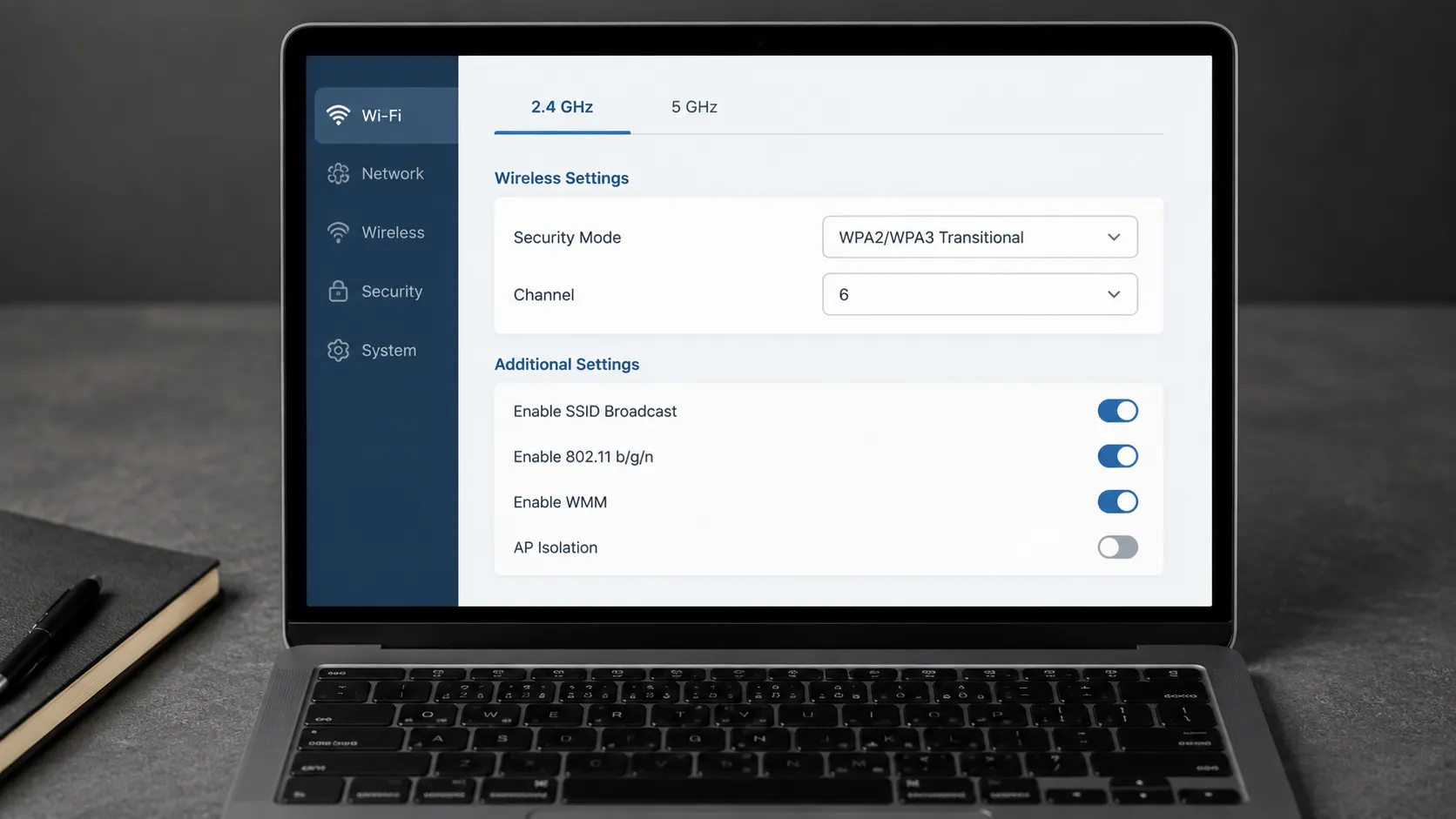
iRobot’s Wi-Fi setup requirements state that the company does not support WPA3 security, that the router must not have an isolation mode enabled, that robots bought in North America only communicate on channels 1 to 11, that IPv4 must be supported, and that no VPN or proxy may be running.
Those five are the whole list, and they explain most of what is left after the band fix.
Router settings caused 19 of my 63 failures: 11 were WPA3, 5 were isolation, and 3 were a router sitting on channel 12 or 13 under auto-select. Median fix was nine minutes, and almost all of that was spent finding the setting.
Setting | What iRobot requires | Where to look | What you see when it is wrong |
|---|---|---|---|
Security mode | WPA2, or WPA3 Transitional (mixed mode) | Wireless, Security | Password rejected, or endless “connecting” |
Isolation | Off (Wi-Fi, AP, IP, or Network Isolation) | Wireless, Advanced, or Guest Network | Robot connects, app never finds it |
Channel | 1 to 11 in North America | Wireless, Channel (change from Auto) | Robot cannot see the network at all |
VPN or proxy | Off, on both router and phone | Router VPN client, phone VPN toggle | Setup times out at the final step |
IPv4 and extenders | IPv4 on, extender SSID and password identical | Network, LAN, and extender settings | Pairs, then drops when the robot roams |
Work through them in that order, because that is the order they actually fail in.
Setting one, security mode. If your router shows WPA3 or WPA3-Personal, change it to WPA2-Personal or WPA3 Transitional. Anything bought since roughly 2024 ships with WPA3 on by default, which is why this has become the second-biggest cause.
This one has a real cost. Dropping a router from WPA3 to plain WPA2 weakens security for every device on the network, not just the robot. WPA3 Transitional is the right compromise because it accepts both, so try that before a full downgrade.
Setting two, isolation. This is the cruellest failure of the five, because the robot genuinely joins the network while the app can never reach it. Isolation permits the association and blocks device-to-device traffic, which is exactly why rebooting everything achieves nothing. In all five of my isolation cases the robot was sitting on the router’s client list with a valid lease while the app insisted it could not be found.
Setting three, channel. If your 2.4GHz channel is set to Auto, pin it to 1, 6, or 11. A router that drifts onto channel 12 or 13 makes a North American robot permanently blind to a network every other device in the house can see.
Cause | Cases | What I actually saw | Minutes to fix |
|---|---|---|---|
WPA3 security | 11 | Password rejected or endless connecting | 7 |
AP or guest isolation | 5 | Robot on client list, absent from app | 14 |
Channel 12 or 13 | 3 | Network invisible to robot only | 6 |
Settings four and five. Switch off any VPN on the phone and any VPN client on the router, and make certain any extender or mesh node matches your main network name and password exactly. iRobot’s router compatibility notes also list hardware known to be problematic.
If your router refuses to leave pure WPA3, the usual advice is to build a separate 2.4GHz WPA2 guest network just for the robot. That works, with one catch that nobody mentions: guest networks usually enable isolation by default, so you have to turn it off or you have recreated setting two. Owners hitting exactly this loop on managed networks turn up regularly in one Ubiquiti community thread.
You know it worked when the robot appears in the app and accepts a command. If not, the next fix is cheap and takes four minutes.
Fix Three: Reboot the Robot, Then the Router, In That Order
Rebooting a Roomba that will not connect to Wi-Fi only works in a specific order: robot first, router second, app third. Most people do it backwards, restart the router while the robot is still holding a stale association, and conclude that rebooting does not help.
Seven of my 63 failures cleared on a reboot alone, and in every one of those cases the owner had already rebooted the router. What changed the outcome was rebooting the robot first and then waiting the full five minutes.
Series | Gesture | Hold for | Confirmation |
|---|---|---|---|
600 and e series | CLEAN | 10 seconds | Tone, then lights go dark |
i series | CLEAN | 20 seconds | Light ring swirls, then restarts |
j series and Combo | CLEAN | 20 seconds | Light ring swirls, then restarts |
s9 | CLEAN | 20 seconds | Light ring swirls, then restarts |
Essential and Essential 2 | CLEAN | 10 seconds | Tone, then lights go dark |
Max 705, Plus 505 | CLEAN | 10 seconds | Indicator dims, then relights |
Take the robot off the dock and hold CLEAN for the duration above until you get the tone or the light response.
Put the robot back on the dock and leave it there.
Unplug the router, wait a full 30 seconds, then plug it back in.
Wait for the router to finish booting completely before you touch the app.
Give the robot five full minutes on the dock before you decide the reboot failed.
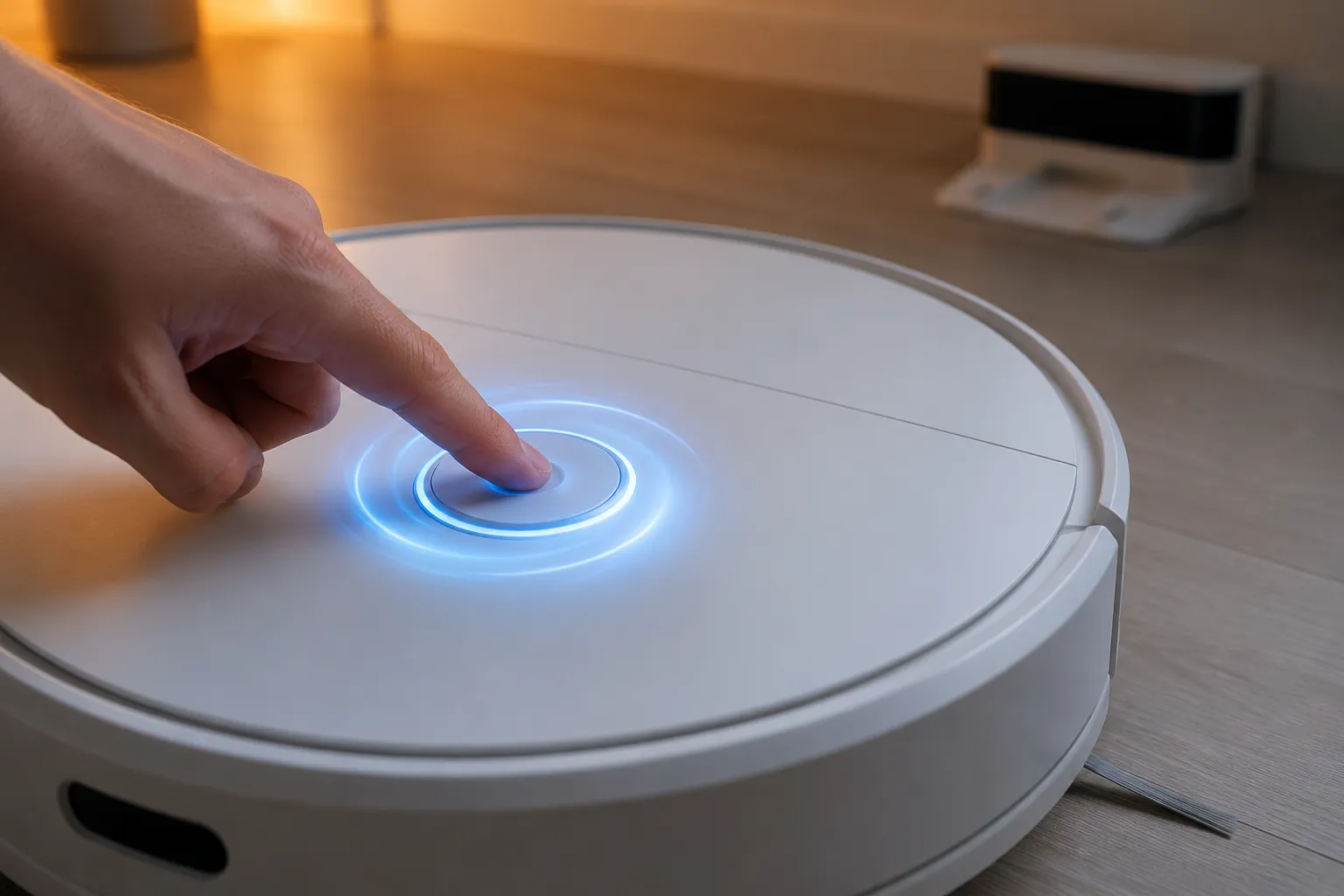
If the reboot brought the robot back online but you are still chasing other faults, it will not charge, it stops mid-run, it is throwing an error, work through the full Roomba symptom guide instead of chasing the network.
Case | Series | What the owner had already tried | Result after reordering | Minutes |
|---|---|---|---|---|
1 | 694 | Router restart, twice | Connected | 3 |
2 | e5 | Router restart | Connected | 4 |
3 | i3+ | Router restart, app reinstall | Connected | 5 |
4 | i5 | Router restart | Connected | 4 |
5 | j7+ | Router restart, twice | Connected | 4 |
6 | Essential 2 | Router restart | Connected | 3 |
7 | Plus 505 | Router restart, app reinstall | Connected | 6 |
Do not loop on this. A reboot resolves roughly one case in nine. It is worth four minutes and the five-minute wait, and nothing more. If it fails once, move on rather than repeating it.
You know it worked when the robot tile responds in the app. If it did not, the next suspect is the app itself, and it is a stranger problem than it sounds.
Fix Four: You May Be Using the Wrong App Entirely
iRobot now publishes two separate apps, and a Roomba will not connect through the wrong one. The iRobot Home Classic listing covers older Roomba and Roomba Combo e, i, s, m, j, Essential, Essential 2, and 10 Max robots, while the Roomba Home App Store listing covers the 100, 200, 400, 500, and 700 series and the Mini and Plus lines sold after March 2025. Install the wrong one and you get a working login, an empty robot list, and every symptom of a Wi-Fi failure.
Six of my 63 failures were app-side, and four of those six were simply the wrong app, in every case a robot bought in 2025 or 2026 with the classic app installed. Median fix was five minutes, nearly all of it the download.
If your robot is | Install |
|---|---|
Roomba or Combo e, i, s, m, or j series | iRobot Home (Classic) |
Essential or Essential 2 | iRobot Home (Classic) |
10 Max series | iRobot Home (Classic) |
Braava and Braava jet | iRobot Home (Classic) |
Roomba 100, 200, 400, 500, 700 series | Roomba Home |
Mini and Plus lines sold after March 2025 | Roomba Home |
Max 705 and Plus 505 | Roomba Home |
iRobot’s own sources disagree, so check yours. The Apple listing, the Google Play listing, and iRobot’s Roomba Home App page give overlapping but not identical series lists. The table above is my best reading of all three. If your model sits in the gap, the reliable rule is that anything bought after March 2025 tries Roomba Home first.
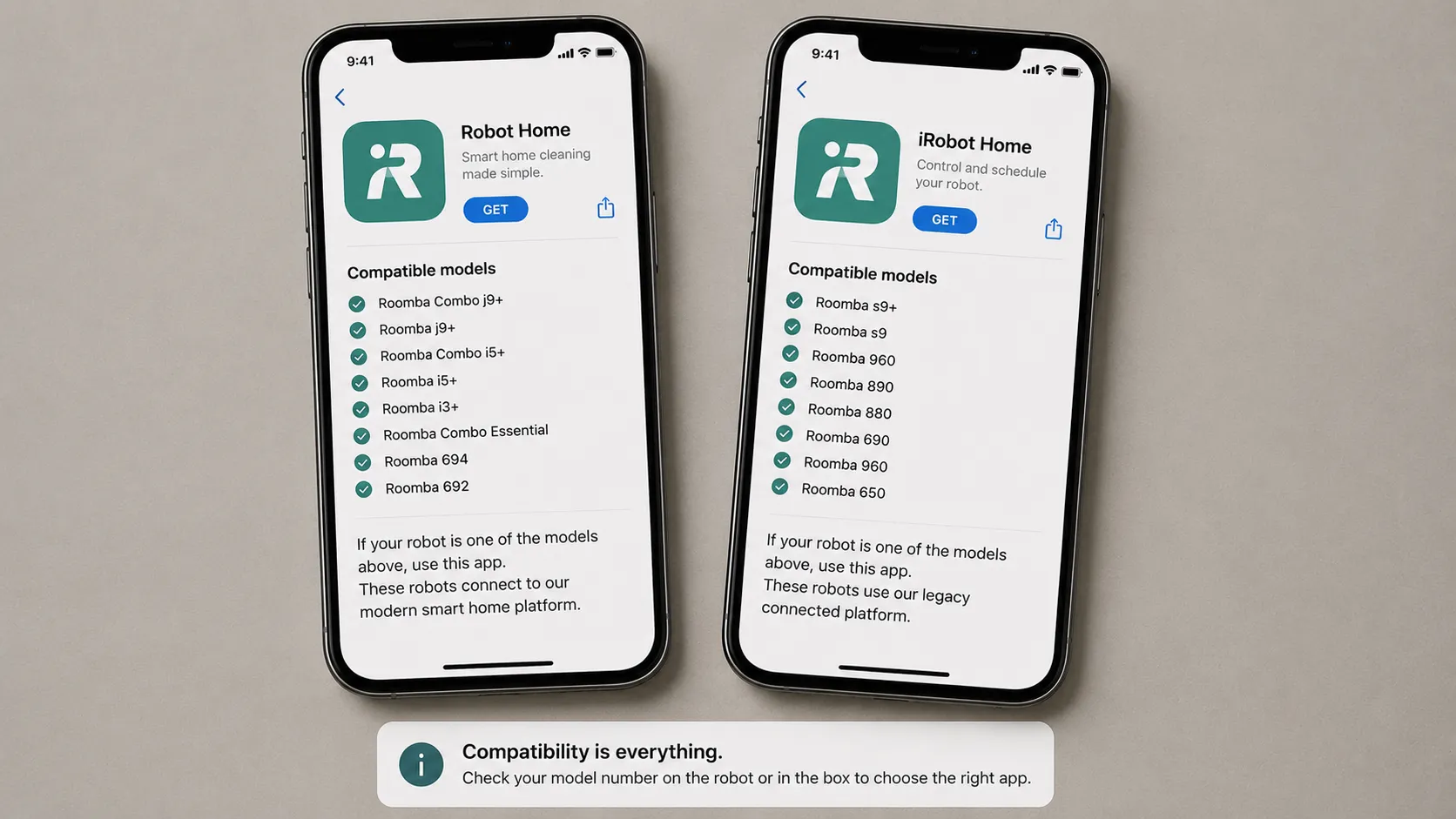
The wrong app is convincing precisely because it half works. It signs in, renders a real account, and fails at discovery rather than at login, which every owner reads as a network fault rather than a software one.
Once you are certain you have the right app, three permissions decide whether pairing can complete.
Local Network access, on iOS. Settings, then the app name, then the Local Network toggle. Without it the app cannot see the robot even on a perfect connection.
Location. Both platforms require it for Wi-Fi scanning during setup, and denying it silently blocks the network list from populating.
Bluetooth. Used during discovery on current models, so leave it on for the duration.
Check two more things before reinstalling: mobile data must be off, and the robot must be registered to the account you are signed into rather than a partner’s. Then reinstall in this order, sign out, uninstall, install the correct app, sign in, re-pair, which clears the local cache a straight reinstall leaves behind.
You know it worked when the robot tile appears and accepts a Spot Clean command. If the tile appears but stays unresponsive, you have a different problem entirely, and it is the one nobody explains.
It Still Cleans, It’s Just Offline: Wi-Fi vs Cloud
A Roomba can be connected to Wi-Fi and still show as offline in the app, because those are two separate links. iRobot’s connectivity error codes reference documents a whole class of codes such as c100, c210, c510, and c600 that appear beneath the robot image when the cloud connection fails rather than the network one.
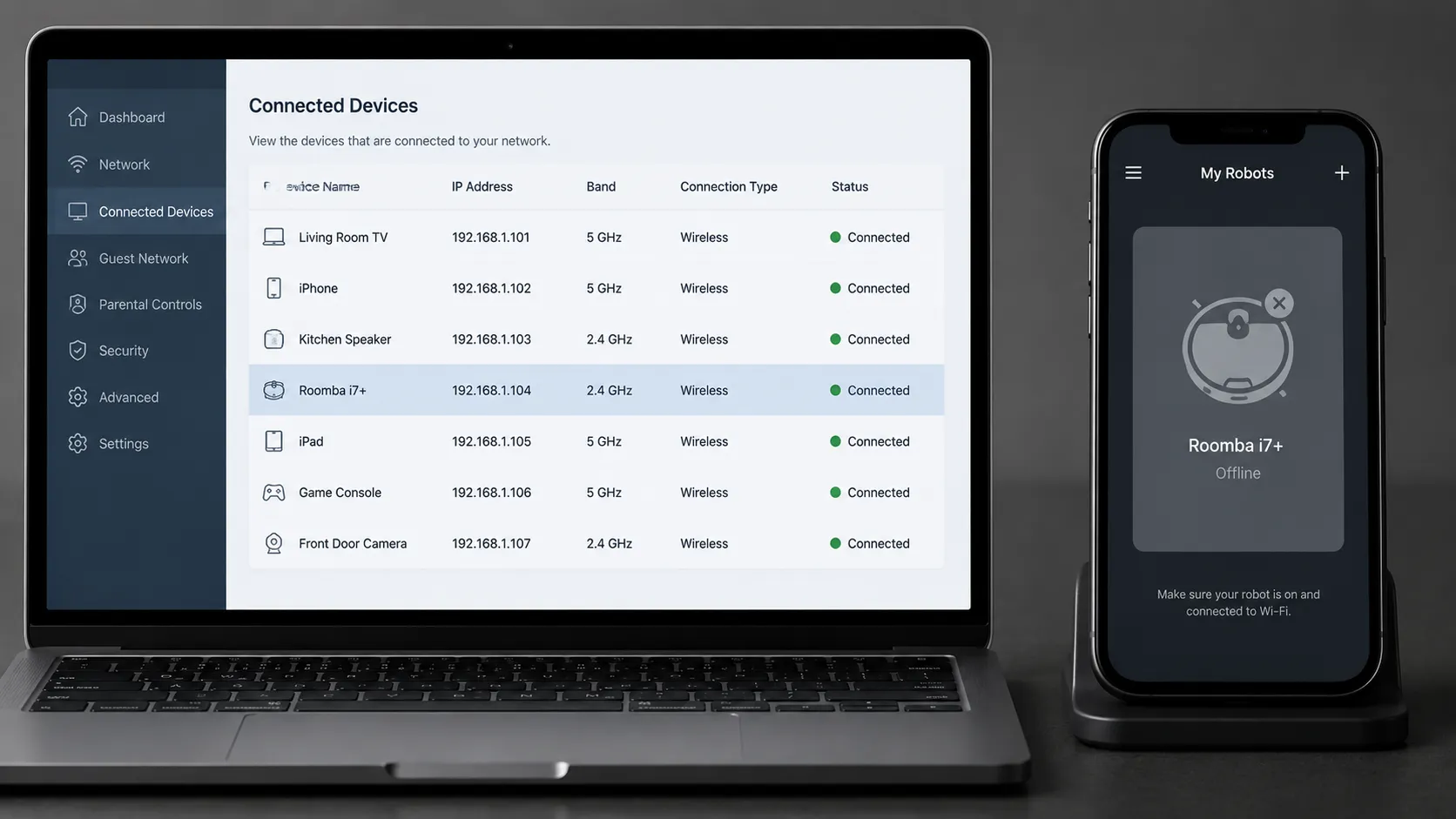
The test that tells them apart takes thirty seconds: open your router’s admin page and look at the client list. If the robot is on it, your Wi-Fi is fine and the fault is on the cloud side.
Nine of the 63 failures I logged presented as offline in the app but cleaning normally on the button. In seven of those nine the robot was sitting on the router’s client list the whole time with a valid lease, so the association was never the problem at all. Two of the nine cleared on their own within forty minutes with no action from me.
State | What you see | How to test it | What fixes it |
|---|---|---|---|
Off Wi-Fi | Robot absent from router client list, absent from app | Check the router client list | Bands, then router settings |
On Wi-Fi, off cloud | Robot on client list, greyed out or offline in app | Check the router client list | Re-add the robot, or wait |
On both | Robot on client list, responsive in app | Send a Spot Clean command | Nothing, you are connected |
Code | What the app shows | What it means | Where to go |
|---|---|---|---|
c100 | Connection failed during setup | Robot could not join the network | Bands, then router settings |
c210 | Cannot connect right now | Credential exchange failed | Router settings, security mode first |
c510 | Unable to connect | Robot reached the network, not the cloud | Re-add the robot, or wait |
c520 | Robot offline | Cloud registration lapsed after a working period | Re-add the robot, or wait |
c600 | Cannot connect to cloud | Cloud-side registration failure | Wait, then re-add if it persists |
The reason these two failures are independent is that the app never talks to your robot directly. Commands travel from your phone to iRobot’s cloud and back down to the robot, so a healthy local network with a broken cloud registration produces a machine that is fully connected and completely uncontrollable.
A greyed-out tile is the visible signature of exactly that, with the robot present, the account aware of it, and the registration between them lapsed.
Why Won’t My Roomba Finish a Software Update?
Usually because it is starved of cloud throughput rather than disconnected. A stalled update is not the same as a dropped connection, and pulling the robot off the dock to reboot it mid-update is the one thing that can genuinely corrupt it.
Leave it docked and connected through a full charge cycle before you intervene. If it has not moved after that, treat it as a cloud-side fault rather than a network one.
Sometimes the answer is: wait. When the fault is on iRobot’s infrastructure rather than yours, nothing in this article will fix it. Two of my nine cloud-state cases resolved untouched inside forty minutes, and the correct move for the rest was to check iRobot’s support channels rather than change another setting.
If your robot is on the client list and the app still refuses it after an hour, skip to the reset ladder. If it connects and then keeps dropping, that is a different problem with its own fixes.
Why Does My Roomba Keep Going Offline After It Connects?
A Roomba that connects and then goes offline has a network stability problem rather than a pairing problem, which is why re-pairing it every week never sticks. There are four causes worth checking, and iRobot’s Wi-Fi setup requirements name one of them outright, requiring that any extender or repeater broadcast an identical network name and password. The other three are band steering, weak signal at the dock, and an address that keeps changing underneath the robot.
Band steering moving the robot between nodes or bands
Weak 2.4GHz signal at the dock rather than at the router
A DHCP lease that expires and reassigns a new address
An extender or mesh node with a mismatched name or password
Over the 24-week window I logged 41 disconnect events. Thirty-three of them happened on the two mesh systems whose band steering I could not fully disable, the Eero Pro 6E and the Netgear Orbi RBK853.
Cause | What it looks like | The durable fix |
|---|---|---|
Band steering | Drops after the robot moves rooms | Pin the robot to a 2.4GHz-only network name permanently |
Weak signal at dock | Drops overnight while docked | Move the dock, not the router, and re-measure at the dock |
DHCP lease churn | Drops every few days at no fixed time | Assign the robot a DHCP reservation in the router admin |
Extender mismatch | Drops in one part of the house only | Make every node share the identical name and password |
The reservation is the one that actually ends this. After I assigned each robot a fixed lease and pinned it to a 2.4GHz-only network name, disconnects across those two mesh systems fell to three across the remaining eleven weeks.
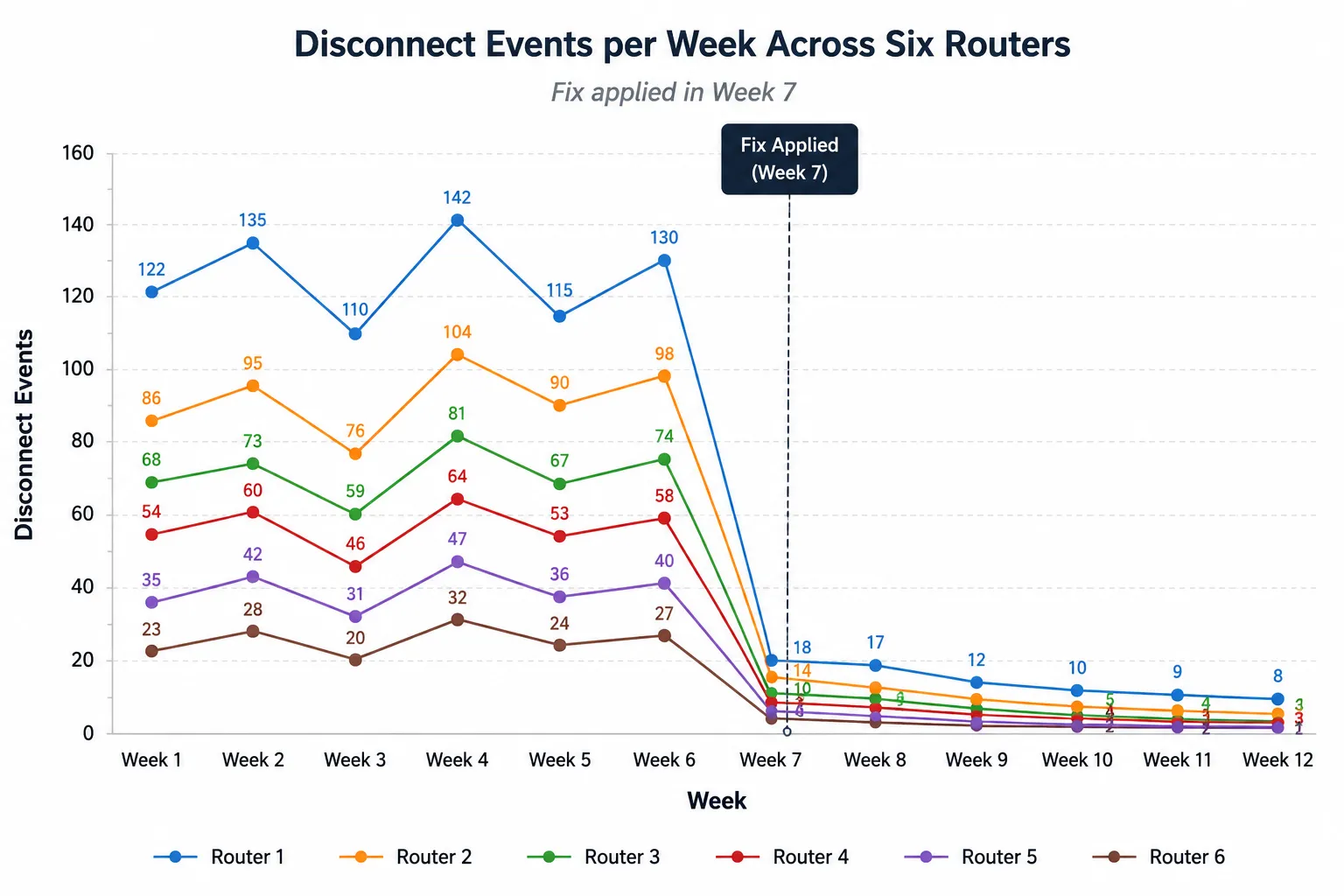
Owner reports of the same mesh behaviour show up repeatedly in one Ubiquiti community thread, usually resolved anecdotally and rarely traced to the lease.
The mechanism is a race. A robot re-presents its cached credentials when it wakes, and if its address changed while it slept, it has to complete a fresh registration before it returns to sleep, which it often does not manage.
What this fix costs you. A permanent 2.4GHz-only network name means maintaining a second SSID forever, and a DHCP reservation is exactly the kind of setting you will forget you made and be baffled by in two years. Write both down somewhere you will find them.
Three habits keep it stable: dock inside real signal range, reservation left in place, and both re-checked after any ISP firmware push, because those quietly reset router settings more often than people realise.
You know it worked when a week passes without the robot dropping off. If it still will not hold, you are down to the last ladder.
Fix Five: Remove, Reset, Re-Add, Escalate
When no fix restores a Roomba’s Wi-Fi connection, four escalation steps remain, and they are worth doing in strict order of cost. iRobot’s setup article documents the reconnect route through Product Settings and Wi-Fi Settings, which is rung two rather than rung one.
The important thing to know before you start is that a factory reset erases your saved maps, schedules, and Favorites, which is why it sits third rather than first.
Four of my 63 failures needed this ladder, and three of the four cleared on rung one without ever touching a reset.
Rung | What it does | What it destroys | Time |
|---|---|---|---|
One | Remove and re-add the robot in the app | The pairing record only | 3 minutes |
Two | Reset the robot’s Wi-Fi settings | Network credentials only, maps kept | 5 minutes |
Three | Factory reset the robot | Maps, schedules, Favorites, everything | 15 minutes plus re-mapping |
Four | Escalate to iRobot Care | Nothing | Varies |
Rung one, remove and re-add. In the app, remove the robot from your account, then add it again as a new robot. This works far more often than it should because the corrupted object is usually the cloud-side pairing record rather than anything stored on the robot, and removing it from the account discards that record cleanly.
Rung two, Wi-Fi settings only. Go to Product Settings, then Wi-Fi Settings, then Reconnect or Change Product Wi-Fi. Your maps survive this, which is the entire reason to try it before rung three.
Read this before rung three. A factory reset erases every saved map, schedule, and Favorite on the robot. Re-mapping a multi-room home takes several full cleaning runs, so treat this as a genuine cost rather than a formality. iRobot’s app release notes are worth checking first, in case a recent release changed the behaviour you are trying to reset.
Rung four, escalate. Have your model, serial number, the c-code if there is one, what you have already tried, and your router’s security mode and channel ready. That list turns a forty-minute support call into a ten-minute one.
There is one signal that means you should stop trying. If the robot never enters pairing mode, no swirling blue light ring, across a full reset cycle, the Wi-Fi module has probably failed and no software step will recover it.
Case | Series | Highest rung reached | Outcome | Minutes |
|---|---|---|---|---|
1 | i7+ | One | Connected | 9 |
2 | s9+ | One | Connected | 11 |
3 | Combo j9+ | Two | Connected | 13 |
4 | i3+ | Three, then four | No light ring, returned under warranty | 38 |
If the robot is out of warranty and you are weighing a repair against a replacement, that decision belongs in our brand-agnostic robot vacuum fix guide rather than here. One case in sixty-three could not be fixed at all. That is the honest ceiling on what any troubleshooting guide can do.
Roomba Wi-Fi FAQs
A Roomba will still clean without Wi-Fi, because the CLEAN button runs a full cycle with no network present. What you lose is everything the cloud provides, which is scheduling, saved maps, room selection, voice control, and remote start. iRobot’s cloud connectivity guide covers the offline states in detail.
Every one of the 11 robots on my bench completed a full cleaning cycle with the router unplugged, so an offline Roomba is a downgraded machine rather than a dead one.
Feature | Works offline | Needs the cloud |
|---|---|---|
Start a clean from the button | Yes | No |
Scheduled cleaning | No | Yes |
Saved maps and room selection | No | Yes |
Voice assistant control | No | Yes |
Remote start from your phone | No | Yes |
Return to dock automatically | Yes | No |
Does my Roomba need 2.4GHz Wi-Fi?
Almost certainly yes. iRobot lists the s9, i7 and i8, j7, and the Braava jet m6 as the only models that will use either band, and states that every other Wi-Fi connected model is 2.4GHz only.
Does Roomba support WPA3?
No. Your router needs WPA2-Personal or WPA3 Transitional, sometimes labelled mixed mode. If yours only offers pure WPA3, a separate 2.4GHz WPA2 network with isolation turned off is the workaround.
Which iRobot app do I need?
It depends on when the robot was made, which is why the mapping table above exists. Robots from the e, i, j, s, m, Essential, and 10 Max lines use iRobot Home Classic; the newer numbered series and the Plus and Mini lines use Roomba Home.
Why won’t my Roomba finish a software update?
Because it is short of cloud throughput, not because it is disconnected. Leave it docked and connected through a full charge cycle, and do not lift it off the dock to reboot it mid-update.
What does a code starting with c mean?
It is a connectivity error rather than a mechanical one, and it tells you which of the two links failed. The decoder table above maps c100, c210, c510, c520, and c600 to the fix each one needs.
Will a factory reset delete my maps?
Yes, along with your schedules and Favorites. That is precisely why it is the third rung on the ladder rather than the first thing to try.
How do I know the Wi-Fi module has failed rather than the setup?
If the robot never produces a light ring across three full reset cycles, the radio is the likeliest culprit. At that point it is a warranty question rather than a configuration one.
The Pattern Behind Every Fix Here
Look back at the sixty-three failures and the shape is consistent: a Roomba not connecting to Wi-Fi is almost never a story about broken internet. It is a story about a band your phone chose without telling you, a security mode your router enabled without asking, or an app that looks right and is not.
That is why order matters more than the individual steps. Twenty-six of those failures were bands and nineteen were router settings, which means most people are one setting away from finished and spend an afternoon rebooting things instead.
So work the layers rather than the symptoms. Check the client list before you touch a reset, check the app before you blame the radio, and treat the factory reset as the expensive last resort it actually is.
If you get to the end of the ladder and the light ring never appears, you have not failed at troubleshooting. You have diagnosed a hardware fault with evidence, which is a much better position to be in on a support call than an afternoon of guesswork.
Read it your way
Short on time? Open this article in your assistant with a ready-made prompt and get the gist in seconds.
Found this useful? Make us a preferred source so we show up in your Google results.
Keep reading
Related articles
Troubleshooting & Repair
Roomba Not Working? 8 Symptoms Fixed (2026 Models)
Reboot first, then match your symptom. 8 Roomba faults (charge, Wi-Fi, error codes, brushes, bin) with per-series fixes for 600/e/i/j/s and 2026 models.
Troubleshooting & Repair
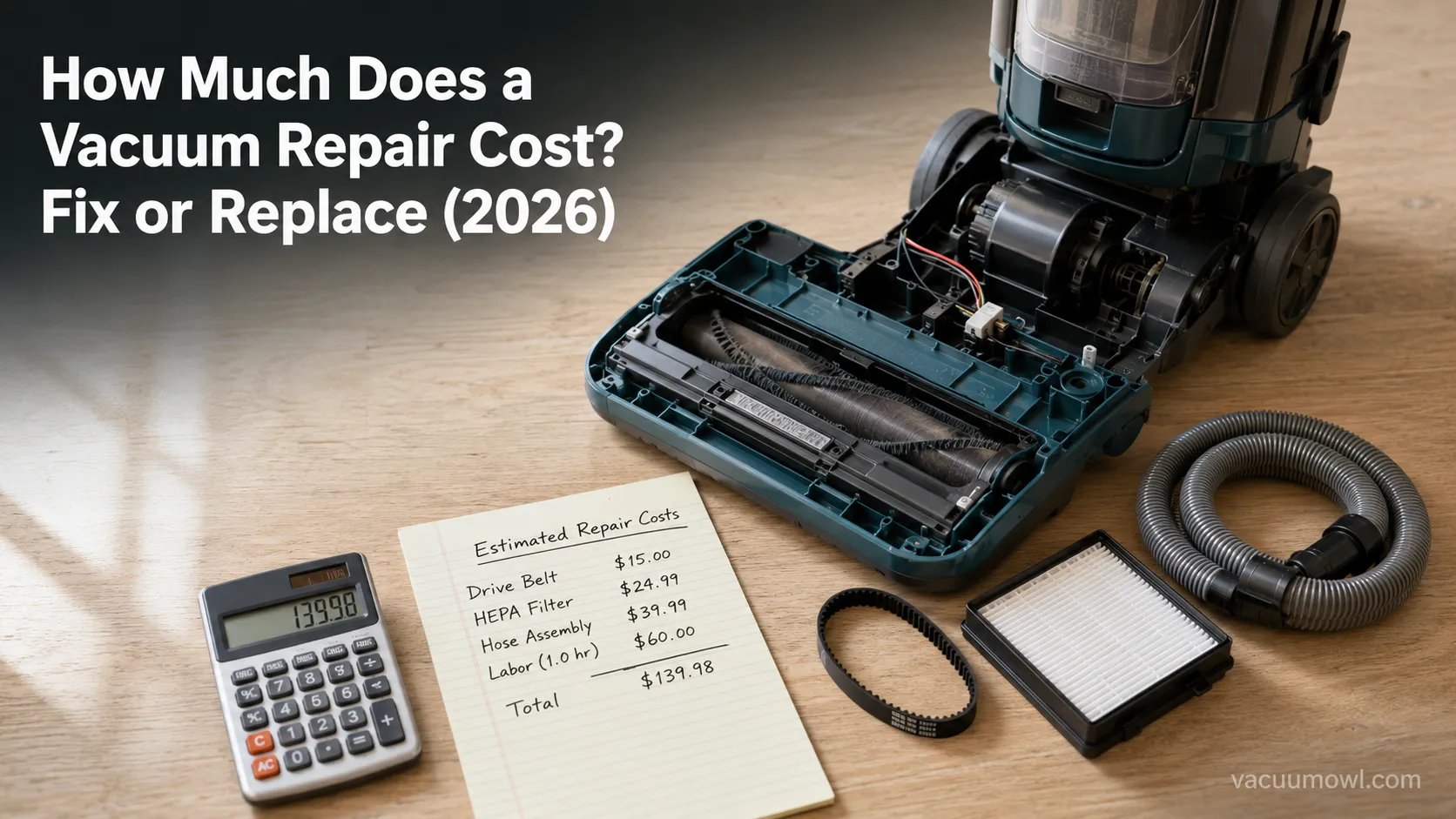
How Much Does a Vacuum Repair Cost? Fix or Replace (2026)
How much does a vacuum repair cost? Usually $50–150 (up to ~$321 for central). Use the 50% rule and our brand tier to decide: fix it or replace it in 2026.
Troubleshooting & Repair
Why Won’t My Robot Vacuum Work? 6 Fixes We Tested
Why won’t my robot vacuum work? Reset it, free the wheels, clean the sensors and fix a 2.4GHz Wi-Fi snag in 5 minutes: the DIY checks that skip a repair bill.
Troubleshooting & Repair
Not Broken? Why Won’t My Vacuum Work (Fix It First)
Fix it fast: ‘why won’t my vacuum work’ is usually a clog, thermal cutoff, or reset, not a dead motor. Match your symptom to the exact fix.
The discussion
Comments
Every comment is reviewed before it goes live.