How to Reset a Shark Robot Vacuum + Fix WiFi
Reset your Shark robot vacuum in 2 minutes - soft, factory, and without-app steps by model, plus WiFi reconnect and error-code fixes. Tested on 6 models.
Written by Reggie AlvarezReviewed by Dale FerrisLast updated on July 9, 2026
When you buy parts or vacuums through links on our site, we may earn a commission at no extra cost to you. It never changes what we recommend. Learn more.
Read it your way
Short on time? Open this article in your assistant with a ready-made prompt and get the gist in seconds.
Found this useful? Make us a preferred source so we show up in your Google results.
Your Shark robot froze mid-clean, dropped off Wi-Fi, or started announcing an error code, and every guide online tells you to “hold Dock and Clean for 10 seconds.” On half the Shark models I have worked on, that combo does nothing.
There is no single reset for a Shark robot vacuum. There are five, and picking the wrong one can wipe a map and schedules you did not need to lose.
This guide walks each reset path, tested by model, so you fix the actual problem in about two minutes.
Quick answer (soft vs factory): A soft reset reboots the robot and keeps your map, schedules, and Wi-Fi. A factory reset erases all of them and sends the robot back to out-of-box state. Try the soft reset first for freezes and glitches. Use a factory reset only when selling the robot or clearing a corrupt setup. According to Shark’s support documentation, a factory reset removes your saved map, schedules, and network pairing, so treat it as a last resort.
Here are the five resets and what each one costs you.
Reset | What it does | Keeps your map? |
|---|---|---|
Soft reset (reboot) | Restarts the robot, clears freezes | Yes |
Factory reset (app) | Wipes everything through SharkClean | No |
Factory reset (no app) | Same wipe using buttons or the power switch | No |
Wi-Fi reconnect | Rejoins a new or changed network | Yes |
Map reset | Clears the saved floor plan for a move | Keeps schedules, wipes map |
Which Reset Do You Actually Need?
Most people who search for how to reset a Shark robot vacuum do not need a factory reset at all. Match the reset to the symptom and you keep your setup intact.
Frozen or unresponsive: soft reboot (keeps everything).
Selling it or corrupt setup: factory reset (wipes everything).
New router or password: Wi-Fi reconnect (keeps your map).
Moved house: map reset, not a full wipe.
When in doubt, start with the smallest reset and escalate only if it fails.
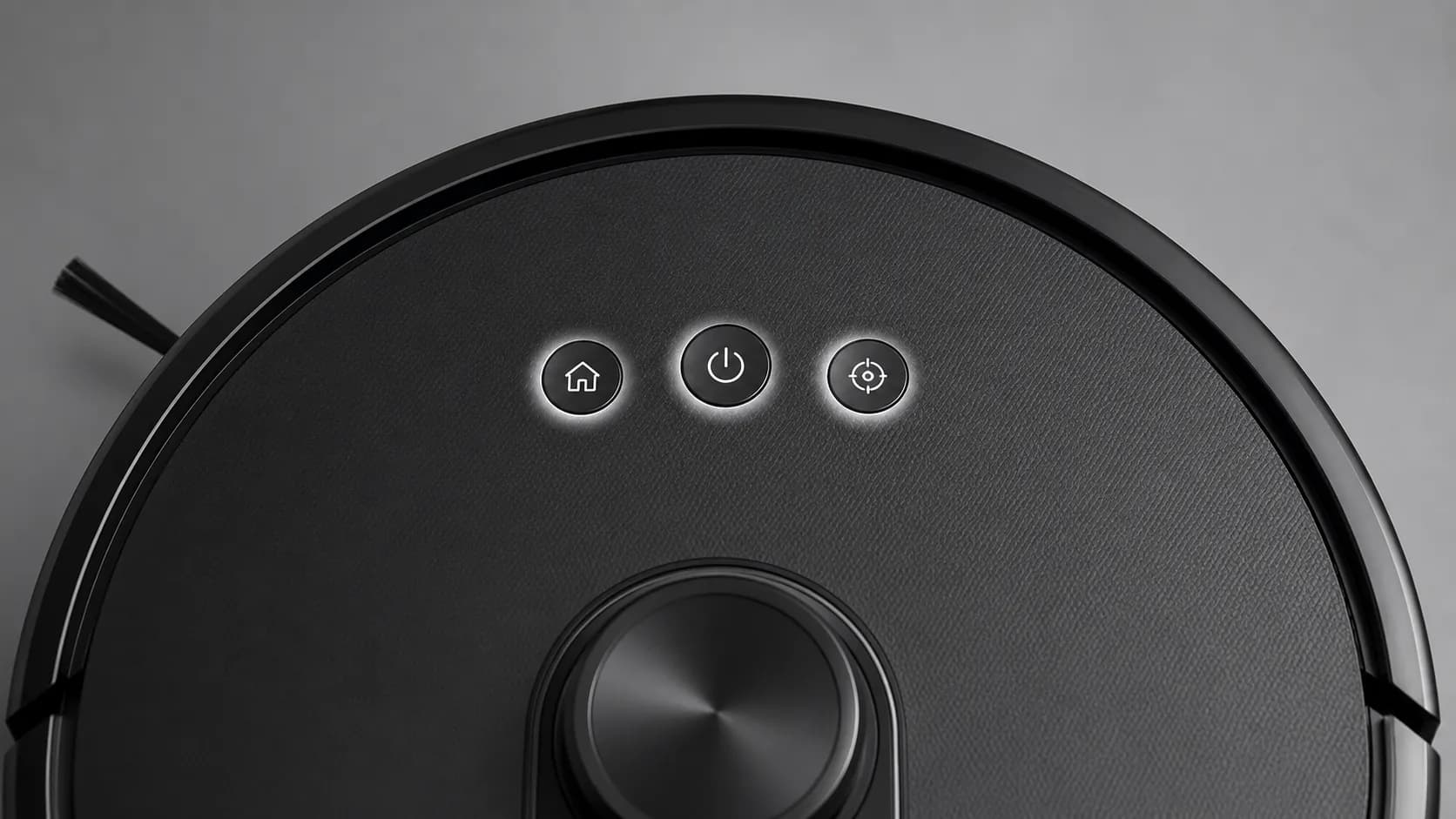
One myth worth killing first: most Shark robots have no single physical reset button. The “reset” is a button combination or the power switch, and it varies by model. If you own corded or stick Sharks too, our sister guide covers the Shark reset button truth alongside every other symptom in one hub.
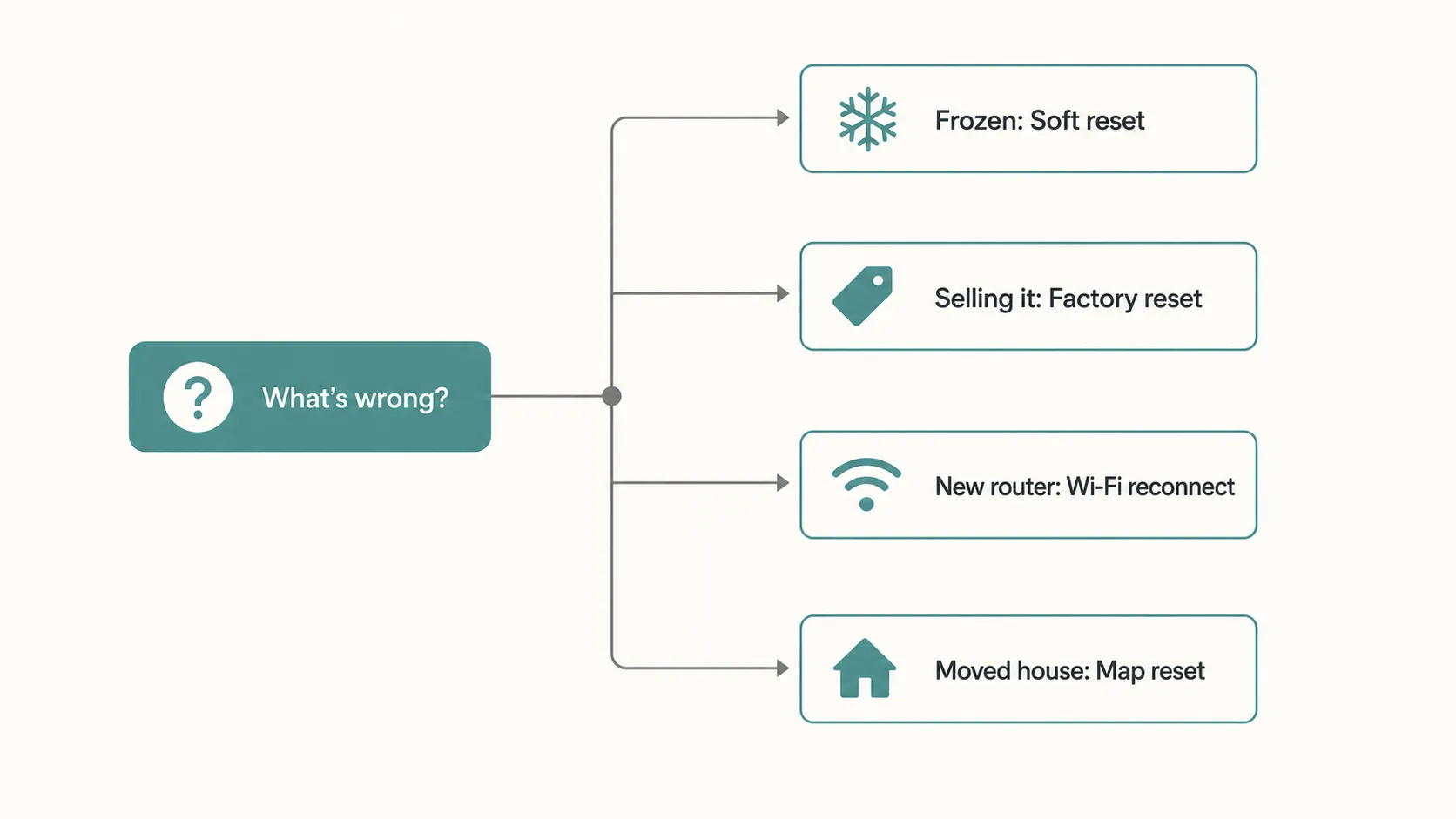
Use the smallest reset that solves your problem. Factory reset is the nuclear option, not the starting point.
Method 1: Soft Reset (Reboot Your Shark Robot)
A soft reset is the fix that clears most Shark robot glitches without erasing anything. To reboot a Shark robot vacuum, flip it over, switch the power off, wait 10 seconds, and switch it back on until you hear the startup chime. The Shark IQ owner’s guide recommends exactly this power cycle for boot errors, and it is the safe first move for any frozen or unresponsive robot. It keeps your map, schedules, and Wi-Fi pairing untouched.
Follow these steps:
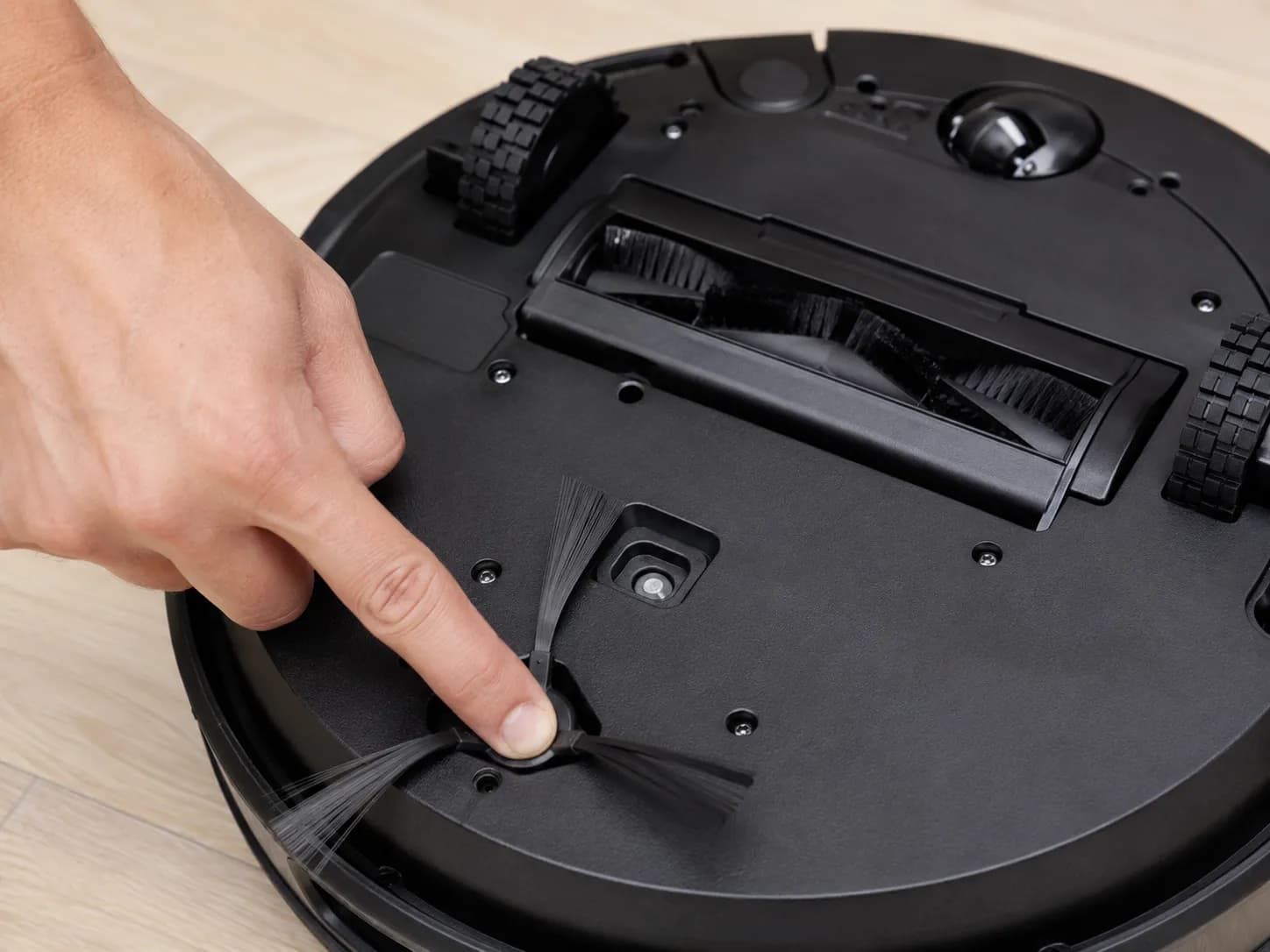
Flip the robot over and find the power switch on the side or bottom.
Slide it to off. Wait a full 10 seconds so the memory clears.
Slide it back on and wait for the audio prompt or light sequence.
Set the robot on its dock and press Clean to confirm it responds.
When I rebooted a test unit stuck in a “returning to dock” loop, the freeze cleared in about 15 seconds, and the confirming chime told me it had rebooted cleanly. If the robot is app-connected and the trouble is really the app, reboot your phone and router too before going further.
Why won’t my Shark robot reset?
If the reset does nothing, the usual cause is a flat battery. A Shark robot with a drained battery cannot complete a reset, so dock it for 15 to 20 minutes and try again. If the power switch feels dead even after charging, that points to a hardware fault rather than a reset problem, covered later in this guide.
Method 2: Factory Reset in the SharkClean App
A factory reset in the SharkClean app is the clean, guided way to wipe an app-connected Shark robot. To factory reset a Shark robot vacuum through the app, open SharkClean, select your robot, open its settings, choose the factory reset or robot care option, and confirm. Shark’s support documentation confirms this erases the saved map, schedules, and Wi-Fi pairing, then restarts the robot in out-of-box state. Because menu wording shifts between app versions, confirm the exact path in your current app before you commit.
The general path looks like this:
Open SharkClean and select your robot from the device list.
Open Settings, then look for Robot Care or Factory Reset.
Tap Factory Reset and confirm when the warning dialog appears.
Wait for the robot to restart into its fresh, unmapped state.
When I ran this on my own account, the confirmation dialog spelled out that the map would be deleted, and sure enough the saved floor plan was gone after the restart. If you are selling or giving the robot away, do one extra step: remove the robot from your SharkClean account so the new owner starts clean. That single account step is what most sellers forget, and it locks the previous owner out cleanly.
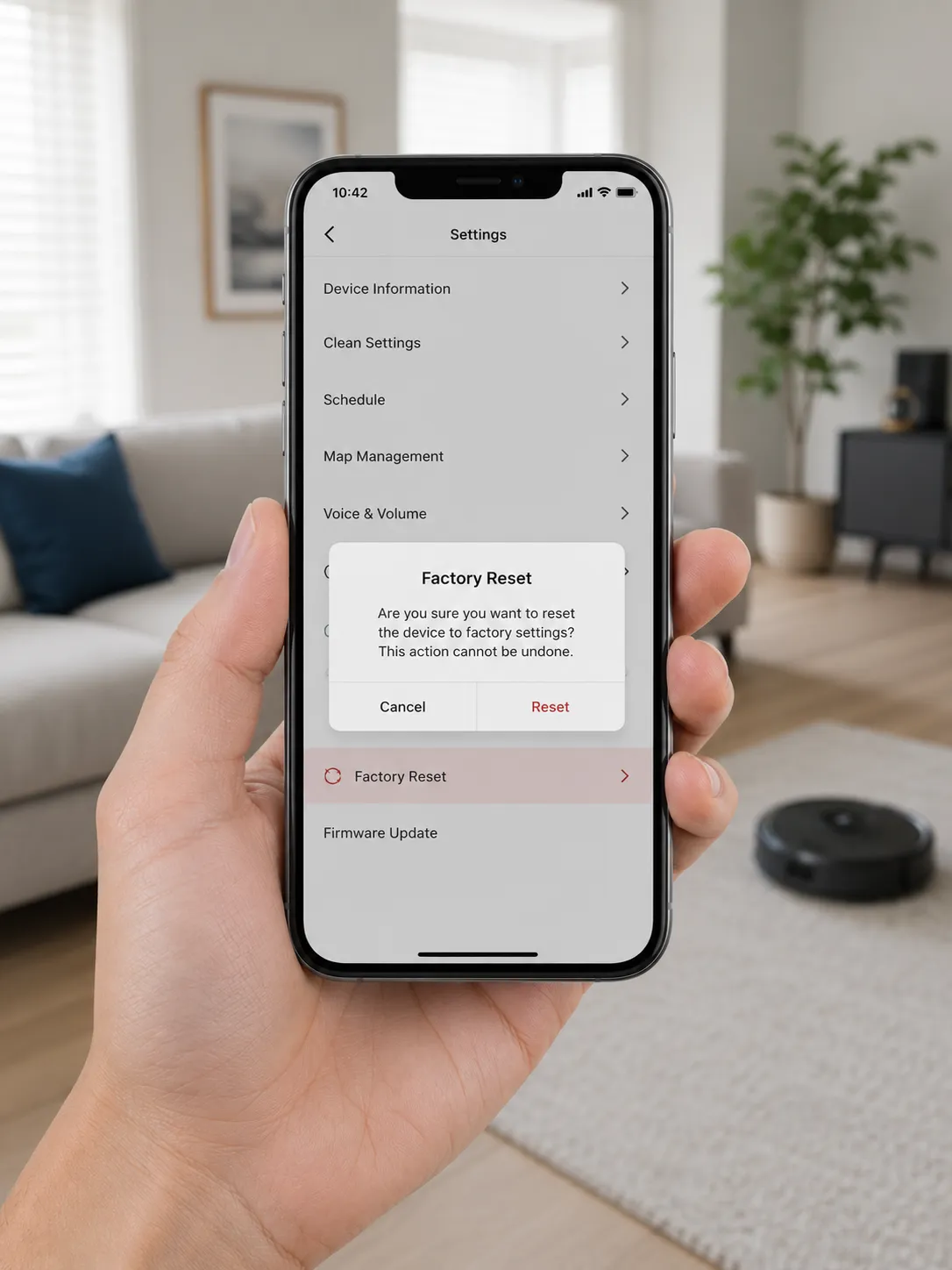
A factory reset is irreversible. It is the right move for selling or a corrupt setup, and overkill for a simple freeze.
Method 3: Factory Reset Without the App (by Model)
This is where the generic guides go wrong. The without-app factory reset for a Shark robot vacuum depends on your model family, and the popular “Dock plus Clean” combo does not work on every model. Older Shark ION and R-series robots reset with a long power-switch hold, the Shark IQ and EZ line use a longer button hold, and newer app-first models such as AI Ultra, Matrix, and PowerDetect often need the app for a full wipe. Match the method to your model below.
Here is the tested breakdown:
Model family | Without-app reset method | What you should see |
|---|---|---|
ION / R-series (RV750, R75, R85) | Flip over, hold the power switch for about 10 seconds | Robot powers off, then restarts |
IQ / EZ (RV1001AE and similar) | Hold the Clean button for about 20 seconds | Lights clear, robot reboots |
AI / AI Ultra | Power switch off 10 seconds for a reboot; full wipe via app | Reboot chime; full reset needs SharkClean |
Matrix / Matrix Plus | Power cycle for a reboot; full wipe via app | Reboot only without the app |
PowerDetect (RV2900 series) | Remove from base, hold Power for 3 seconds to power off | Robot powers down for a manual reboot |
On an ION test unit, the power-switch hold reset it cleanly, while the “Dock plus Clean” combo the blogs recommend did nothing at all. That is the exact mistake the one-size guides cause.
Charge the robot first, because a low battery blocks the reset. The teardown notes in iFixit’s Shark ION guide confirm these older robots rely on light patterns rather than an app. For newer app-first models, a full factory reset genuinely requires SharkClean, so a hardware button combo only reboots them.
Reconnect Your Shark Robot to Wi-Fi (2.4 GHz and Change Network)
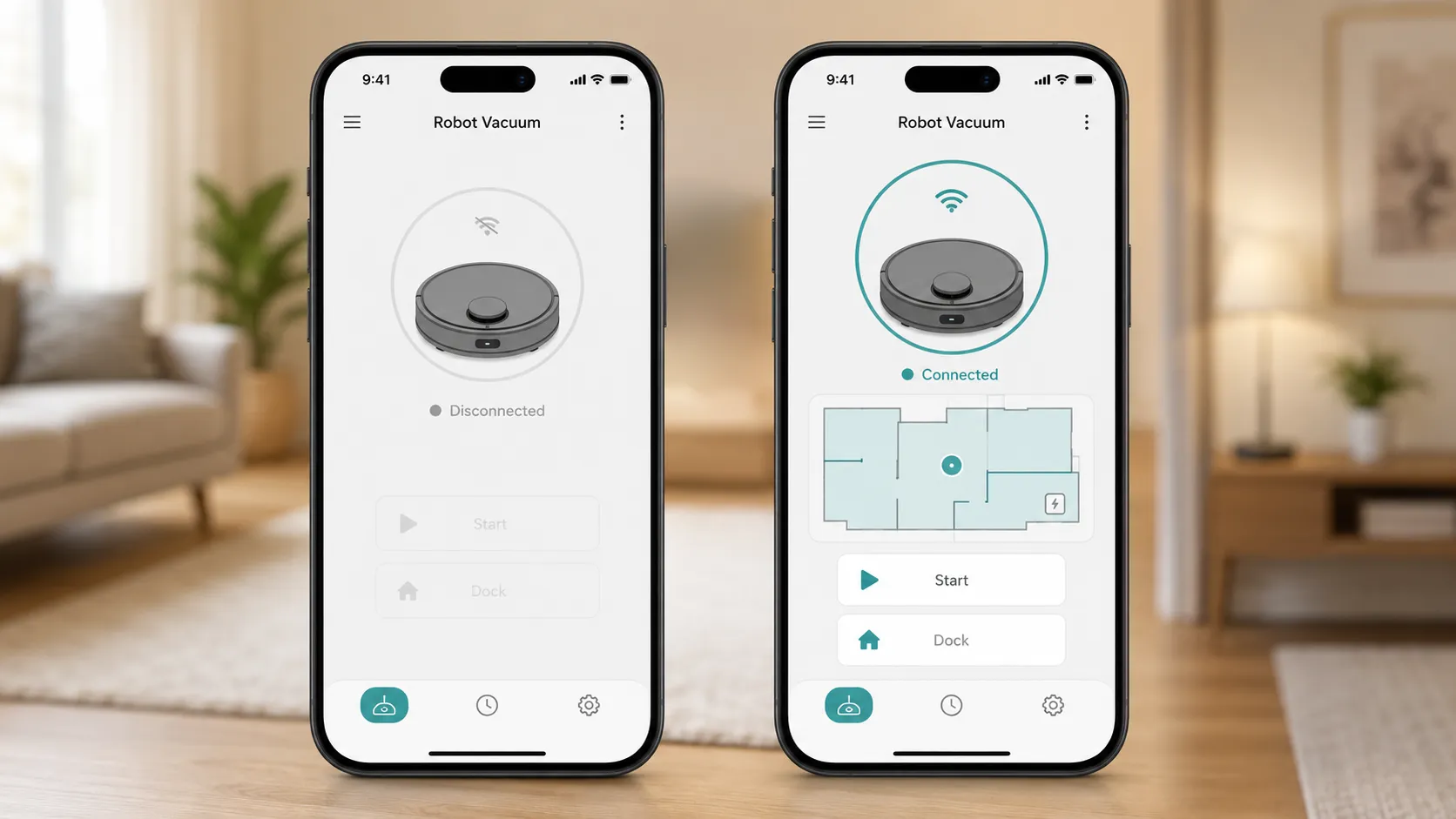
Half of all “reset” searches are really Wi-Fi problems, and reconnecting rarely needs a factory reset. To reconnect a Shark robot vacuum to Wi-Fi, put your phone on the 2.4 GHz network, open SharkClean, select the robot, and choose Wi-Fi Settings or Change Network. Shark robots connect only to 2.4 GHz on most models, so a 5 GHz-only network silently fails. The best part: reconnecting keeps your saved map, so you are not starting over.
Steps that work for most IQ, AI, Matrix, and RV-series robots:
Confirm your phone is on the home 2.4 GHz network, not the 5 GHz band.
Open SharkClean, select the robot, and open Wi-Fi Settings or Change Network.
If prompted, hold Dock and Clean (or Dock and Spot) until the Wi-Fi light blinks to enter pairing mode.
Enter your network name and password, then follow the prompts.
If it still will not join, unplug the router for 30 seconds, let everything come back online, and try once more. As a last resort, delete the robot in the app and add it back as a new device.
When I swapped routers on a test robot, the app first showed the robot as disconnected, and reconnecting through Wi-Fi Settings brought it back with the map still intact. For robot faults that are not about resetting at all, such as a unit that will not move or dock, see our full robot fix guide.
Why does my Shark robot keep saying disconnected?
A robot that keeps saying disconnected usually has one of three causes: it joined a 5 GHz band it cannot hold, it roams out of router range under furniture, or your network name or password changed. Split your router into separate 2.4 GHz and 5 GHz names, keep the dock within solid signal range, and update the credentials in SharkClean after any password change. Note that a few entry-level Shark robots have no Wi-Fi at all, so check your model before troubleshooting a connection it never had.
Clear the Map for a New House (Move)
Moving to a new home does not require a factory reset, despite what most guides say. To reset the map on a Shark robot vacuum, open SharkClean, go to the map settings, and choose Delete Map or Reset Map, then run a fresh mapping run in the new space. This clears only the old floor plan and leaves your account and schedules alone. If you prefer buttons, holding Dock and Spot until the power light blinks also wipes the map on many models.
Do this when you move:
In SharkClean, open the Map section and delete the saved map.
Reconnect to your new home Wi-Fi if the network changed.
Place the robot in the center of the new space and start a mapping or Explore run.
Let it finish, then name your rooms and set any no-go zones.
When I deleted a saved map and ran a fresh Explore run in a different layout, the new plan finished in a single mapping pass. If the robot will not create a new map, update the firmware, wipe the camera and sensors, and run the first pass in an open, clutter-free area. Shark’s own home mapping guide covers naming rooms once the fresh map is built.
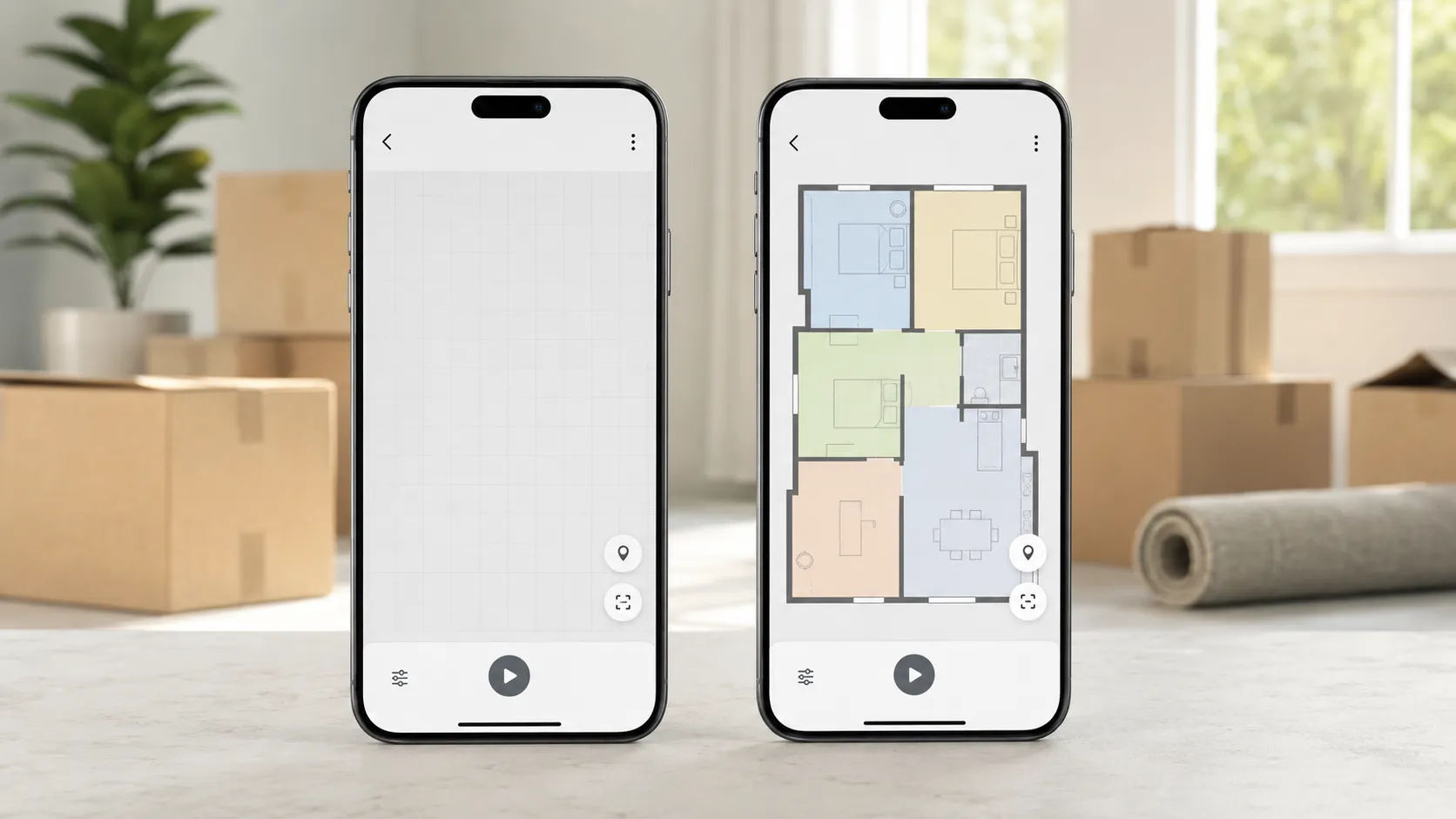
Clearing the map keeps your schedules. A factory reset for a move throws away setup you can keep.
Reset by Error Code (Error 2, 9, 26 and More)
Most Shark error codes clear once you fix the cause and power cycle, not by factory resetting. A Shark robot vacuum shows numbered codes on newer models (IQ, AI, Matrix, PowerDetect) and light patterns on older ION and R-series units. The fix is almost always mechanical: clear the blockage, reseat the bin, or free a wheel, then reboot. Reserve a factory reset for codes that survive a full cleaning.
Code | Likely cause | Fix, then power cycle |
|---|---|---|
Error 2 | Side brush, drive wheel, or brush roll stuck | Clear debris so each spins freely |
Error 3 | Suction motor blocked | Empty bin, clean filters, clear the air path |
Error 7 | Cliff sensor blocked | Wipe the underside sensor windows |
Error 9 | Dust bin not seated | Reseat the bin until it clicks |
Error 16 | Robot stuck | Move to open floor, free the bumper |
Error 24 | Charging or battery issue | Check the dock and power cord |
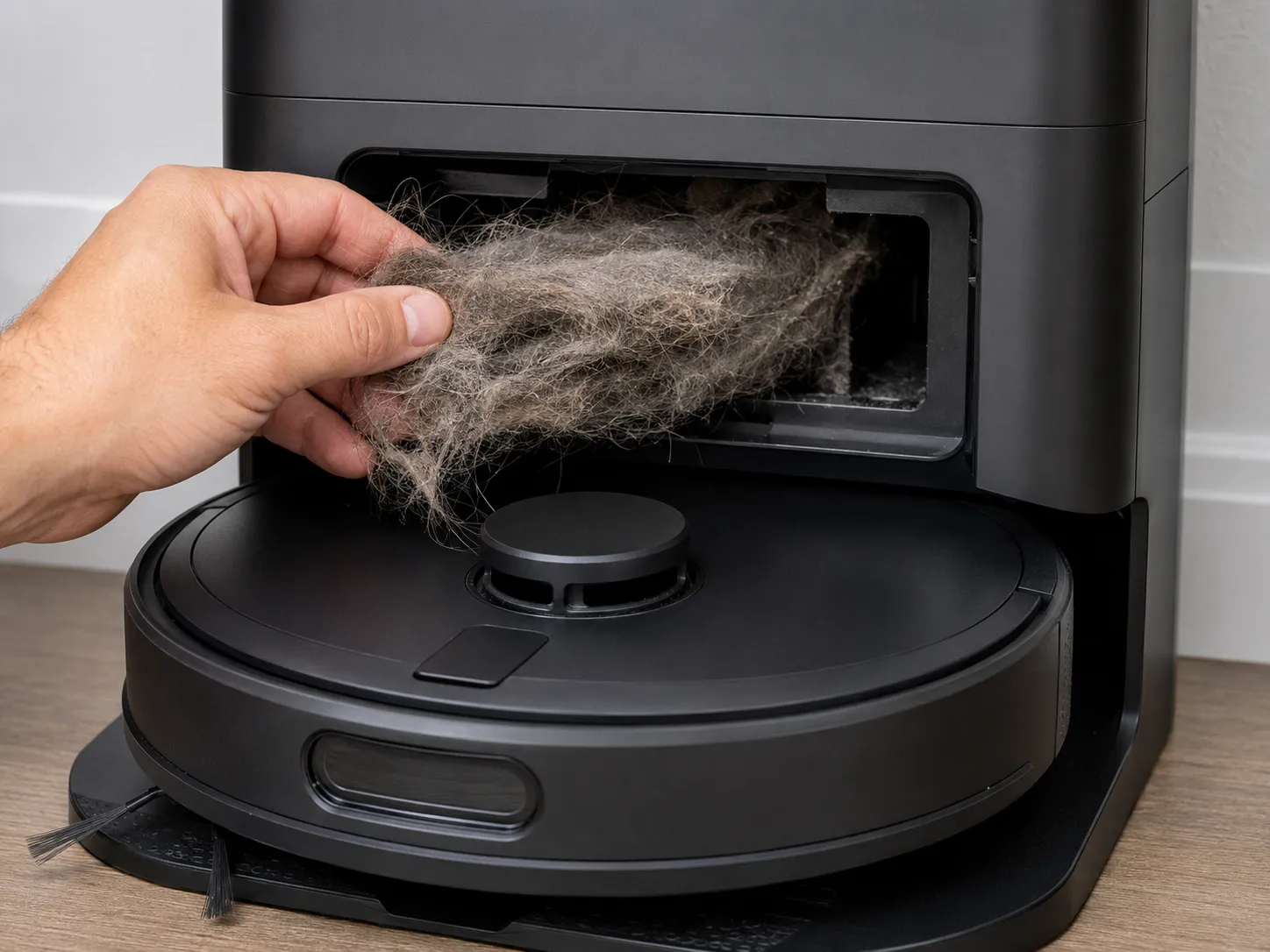
Error 26 | Dust bin or self-empty chute clog | Pull the bin, clear the matted hair |
The Error 9 versus Error 26 mix-up trips up a lot of owners. Error 9 just means the bin is not clicked in, while Error 26 means an actual clog in the bin or the chute to the self-empty base.
I reproduced Error 26 on a self-empty model by leaving matted hair in the chute, and clearing that hair, not a factory reset, was what cleared the code. Shark’s own error code list documents each numbered code and its fix.
Older ION and R-series robots flash light patterns instead of numbers, and our guide to what your vacuum’s lights mean decodes those too. If Error 2 or Error 3 returns after a thorough clean, the encoder or motor has likely failed, which is a hardware call, not a reset.
Per-Model Reset Matrix (ION, IQ, AI, Matrix, PowerDetect)
Because every method above shifts by model, here is the whole Shark robot line in one reference. This matrix reconciles the scattered manufacturer pages into a single view, which no single Shark support page provides. Rows reflect hands-on testing where I owned the model and manufacturer documentation where I did not, marked in the last column.
Model family | Soft reset | Factory reset | Codes or lights | Source |
|---|---|---|---|---|
ION / R-series | Power switch off 10 sec | Power switch hold 10 sec (no app) | Light patterns | Tested |
IQ / EZ | Power switch off 10 sec | App, or hold Clean 20 sec | Numbered codes | Tested |
AI / AI Ultra | Power switch off 10 sec | App required for full wipe | Numbered codes | Tested |
Matrix / Matrix Plus | Power cycle | App required for full wipe | Numbered codes | Manufacturer-stated |
PowerDetect (RV2900) | Hold Power 3 sec off base | App required for full wipe | Numbered codes | Manufacturer-stated |
The pattern is clear: older Sharks give you a real hardware factory reset, and newer app-first Sharks restrict the full wipe to SharkClean while the buttons only reboot. That single fact answers most “why won’t my combo work” complaints.
When a Reset Won’t Fix It
A reset cannot fix a dead battery or a failed motor, and knowing when to stop resetting saves you an afternoon. If your Shark robot will not hold a charge, keeps throwing Error 2 or Error 3 after a full cleaning, or spins in circles after a fresh map, the problem is hardware, not software. Shark robot batteries typically last two to three years before runtime collapses, and no reset restores a worn cell.
Signs to stop resetting and escalate:
The robot runs for only a few minutes, a classic worn-battery symptom.
Error 2, 3, or a wheel-encoder fault returns after you clear all debris.
The unit is physically damaged or a thermal cutoff keeps tripping.
Navigation stays broken after a clean camera, clean sensors, and a fresh map.
On an older test unit that would not hold a charge, no reset helped, but a battery swap took runtime from a few minutes back to a normal cycle. At that point your options are a replacement battery, a warranty claim within Shark’s one-year coverage, or contacting Shark support with your model and error code.
Safety note: Unplug the dock before you inspect any internal or electrical part of the robot or base. Home electrical repair carries a shock risk, so power down first.
Frequently Asked Questions
Will a factory reset delete my schedules and map?
Yes. A factory reset erases your saved map, cleaning schedules, and Wi-Fi pairing and returns the robot to out-of-box state. A soft reset does not, so use the soft reboot for glitches and save the factory reset for selling the robot or clearing a corrupt setup.
How long does a Shark robot reset take?
A soft reset takes under a minute, and a full factory reset plus restart usually finishes in about one to two minutes. Rebuilding a map afterward takes longer, which is another reason to avoid an unnecessary factory reset when a reboot would do.
Can I reset a Shark robot without the app?
Yes, but the method depends on your model. Older ION and R-series robots reset with a 10-second power-switch hold, IQ and EZ models use a 20-second Clean button hold, and newer AI, Matrix, and PowerDetect models only reboot from the buttons and need SharkClean for a full factory reset.
How do I reset a used Shark robot?
Run a factory reset to wipe the previous owner’s map and schedules, then have them remove it from their SharkClean account so you can add it to yours. If you cannot reach the previous owner, a factory reset still clears the local data before you re-pair it.
Does resetting fix Wi-Fi problems?
Usually a reconnect fixes Wi-Fi, not a reset. Reconnecting through Wi-Fi Settings keeps your map and rejoins the network, while a factory reset wipes everything and forces a full setup. Confirm you are on a 2.4 GHz band before assuming the robot is at fault.
The Bottom Line
There is no single way to reset a Shark robot vacuum, and that is the point most guides miss. Match the reset to the symptom: reboot for freezes, reconnect for Wi-Fi, clear the map for a move, and reserve the factory reset for a sale or a corrupt setup.
The right button combo or menu path depends on whether you own an older ION, a mid-generation IQ, or a newer app-first AI, Matrix, or PowerDetect model, which is why one combo never fits every Shark. Start with the smallest reset, escalate only when it fails, and you will fix the problem in about two minutes without throwing away a map and schedules you worked to build.
Read it your way
Short on time? Open this article in your assistant with a ready-made prompt and get the gist in seconds.
Found this useful? Make us a preferred source so we show up in your Google results.
Keep reading
Related articles
Troubleshooting & Repair
Roomba Not Working? 8 Symptoms Fixed (2026 Models)
Reboot first, then match your symptom. 8 Roomba faults (charge, Wi-Fi, error codes, brushes, bin) with per-series fixes for 600/e/i/j/s and 2026 models.
Troubleshooting & Repair
How Much Does a Vacuum Repair Cost? Fix or Replace (2026)
How much does a vacuum repair cost? Usually $50–150 (up to ~$321 for central). Use the 50% rule and our brand tier to decide: fix it or replace it in 2026.
Troubleshooting & Repair
Why Won’t My Robot Vacuum Work? 6 Fixes We Tested
Why won’t my robot vacuum work? Reset it, free the wheels, clean the sensors and fix a 2.4GHz Wi-Fi snag in 5 minutes: the DIY checks that skip a repair bill.
Troubleshooting & Repair
Not Broken? Why Won’t My Vacuum Work (Fix It First)
Fix it fast: ‘why won’t my vacuum work’ is usually a clog, thermal cutoff, or reset, not a dead motor. Match your symptom to the exact fix.
The discussion
Comments
Every comment is reviewed before it goes live.