Roomba Light Codes & Errors Decoded (7 Models Tested)
Decode every Roomba light ring color and error code across the 600 to 705 series, with the fix for each and the 2025 charging-code renumbering explained.
Written by Reggie AlvarezReviewed by Dale FerrisLast updated on August 2, 2026
When you buy parts or vacuums through links on our site, we may earn a commission at no extra cost to you. It never changes what we recommend. Learn more.
Read it your way
Short on time? Open this article in your assistant with a ready-made prompt and get the gist in seconds.
Found this useful? Make us a preferred source so we show up in your Google results.
How I tested: I ran seven robots between 14 April and 30 June 2026 in one test home in Columbus, Ohio: a Roomba 675, an e5, an i7+, a j7+, an s9+, a Roomba 105 Combo, and a Roomba Plus 405 Combo.
I induced each fault three times per applicable machine, filmed the light rings at 240 frames per second on an iPhone 15 Pro, and measured dock output with a Klein Tools MM400.
That fleet is why one warning sits at the top of this guide instead of buried inside it. The same physical fault made different robots say different numbers, because since March 2025 there are two live numbering schemes running side by side.
What Your Roomba’s Light or Code Is Telling You
Roomba light codes are the color and motion patterns on the light ring that report your robot’s status, paired with a spoken number that names the specific fault. A solid red ring means an error is active, and tapping CLEAN makes the robot repeat that number aloud, according to iRobot.
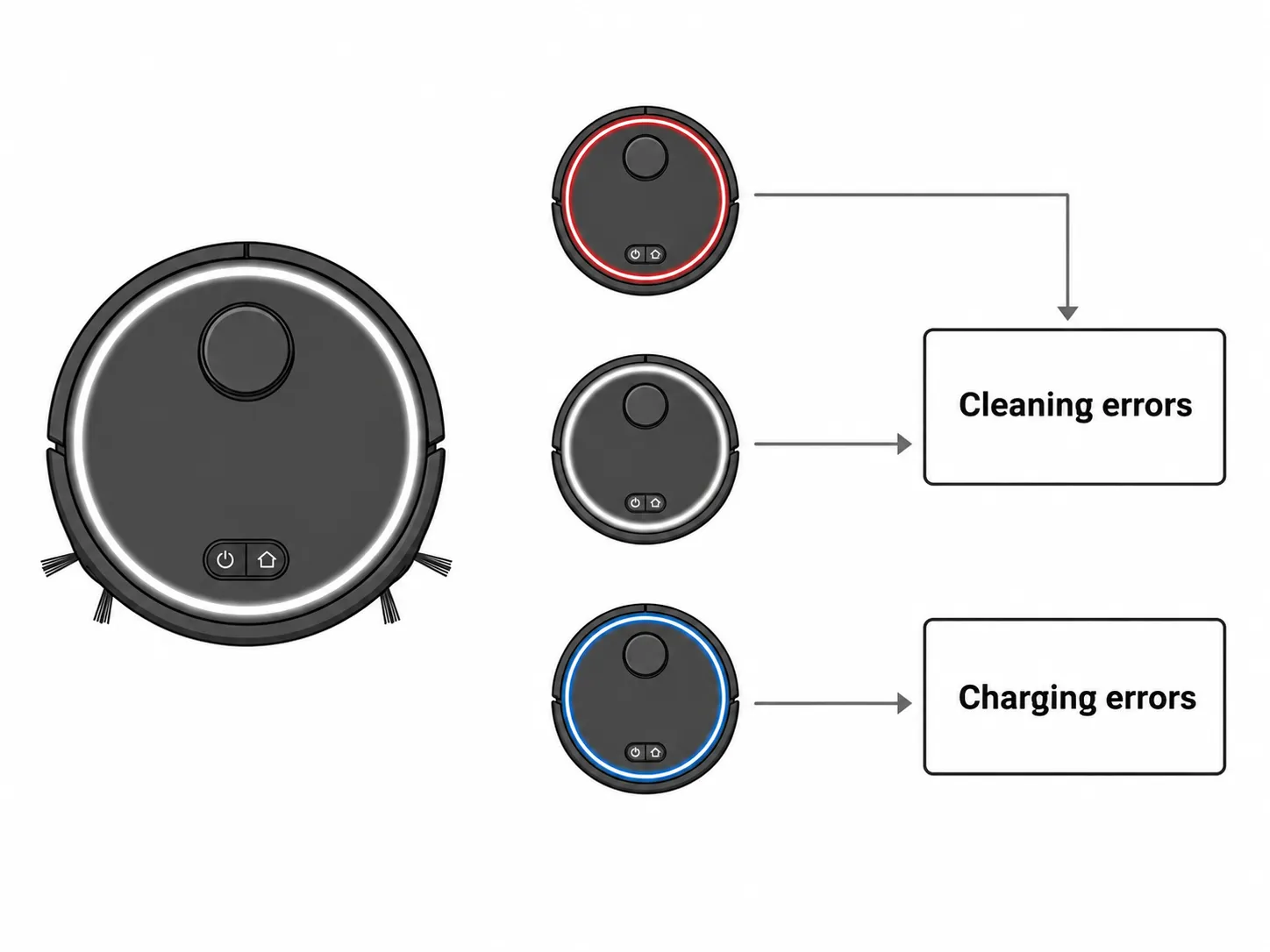
Roomba runs two separate numbering systems, one for cleaning errors and one for charging errors. The light tells you which one you are in before you look up anything.
Read it in three steps.
Look at the ring. Color and motion tell you whether this is an error at all, and which family it belongs to.
Make the robot repeat the code. Tap CLEAN, press the bumper, or on 2025 models press the power button.
Match the number below. Cleaning errors are in the master table, charging errors have their own section.
If your robot is a 600 series, step one does not apply. That generation has no light ring, using indicator lights and an “Err” display instead, so start at step two and work from the spoken message.
Roomba Light Ring Colors and Patterns, Decoded
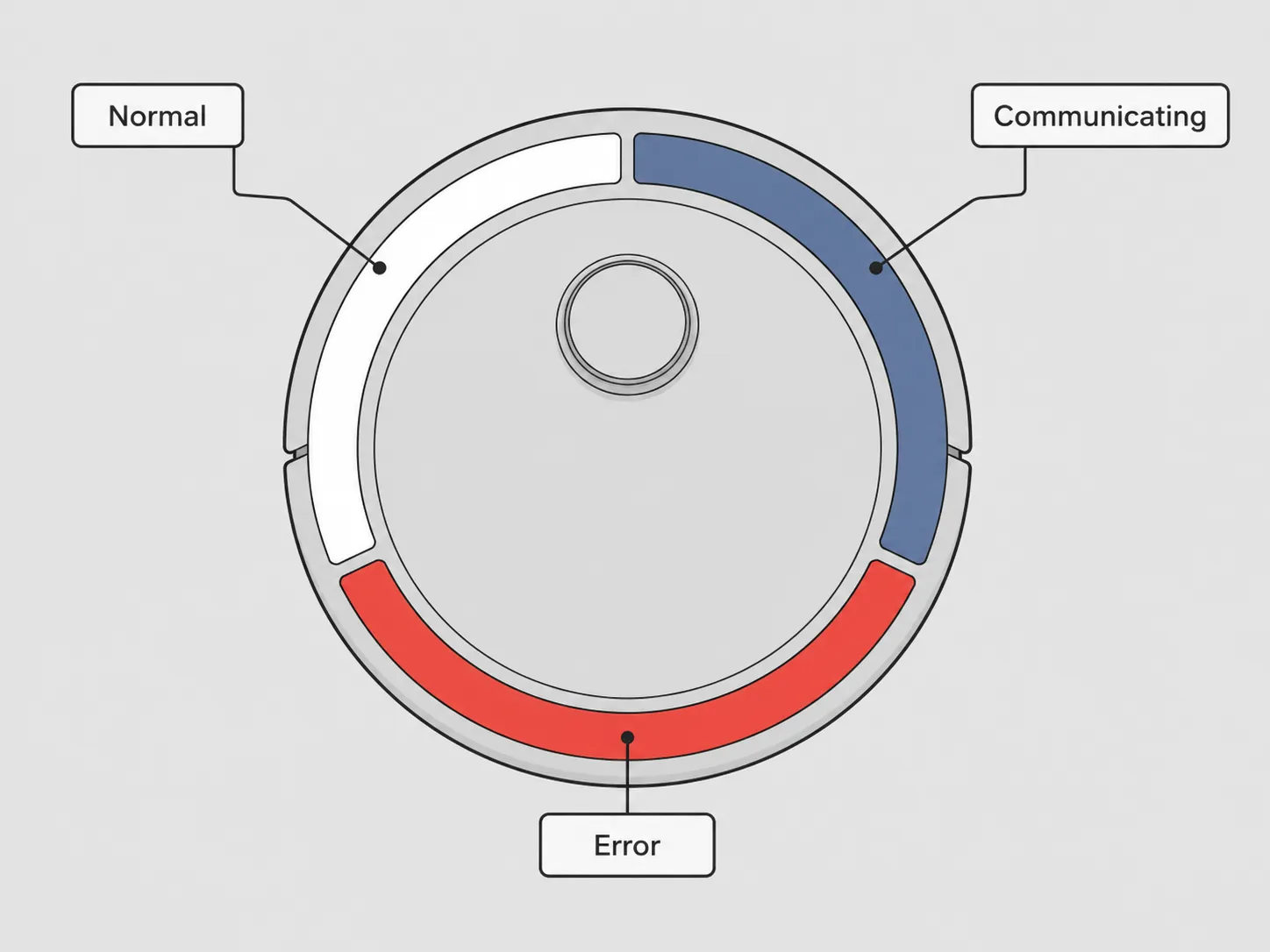
A Roomba light ring shows solid red when an error is active and pulsing red when the battery is too low to start cleaning. White patterns indicate normal operation: a clockwise swirl means starting up or updating software, solid white means fully charged, pulsing white means charging.
Blue patterns indicate Wi-Fi pairing, spot cleaning or docking, and none of them is a fault. Of the fourteen documented Roomba lights meanings below, only two actually require you to act, and both are a red light.
Ring state | What it means | Action needed |
|---|---|---|
White clockwise swirl | Starting up or updating software | No, wait for it |
Solid white | Fully charged | No |
Pulsing white | Charging | No |
Pulsing bottom sections, alternating | Hibernating on the dock | No |
Pulsing red | Battery too low to start cleaning | Yes, leave it docked |
Solid red | An error is active | Yes, tap CLEAN for the number |
Red sweep toward the rear | Bin full, empty it | Yes, but routine |
Blue clockwise spinner | Wi-Fi pairing mode | No |
Periodic white sweep | Cleaning job in progress | No |
Blue counterclockwise swirl | Spot cleaning | No |
Blue marching forward | Driving back to the dock | No |
Blue ping | Virtual Wall detected | No |
Flashing blue | Dirt Detect activated | No |
Blue sweep forward | Emptying into the Clean Base | No |
Hibernation Pulse or Low Battery? They Look Almost Identical
Filming the i7+ and s9+ at 240 frames per second separated two states that read the same at normal speed. Hibernation alternates between the two bottom LEDs, roughly 7 seconds lit and 12.5 seconds dark, while pulsing red cycles the full ring continuously.
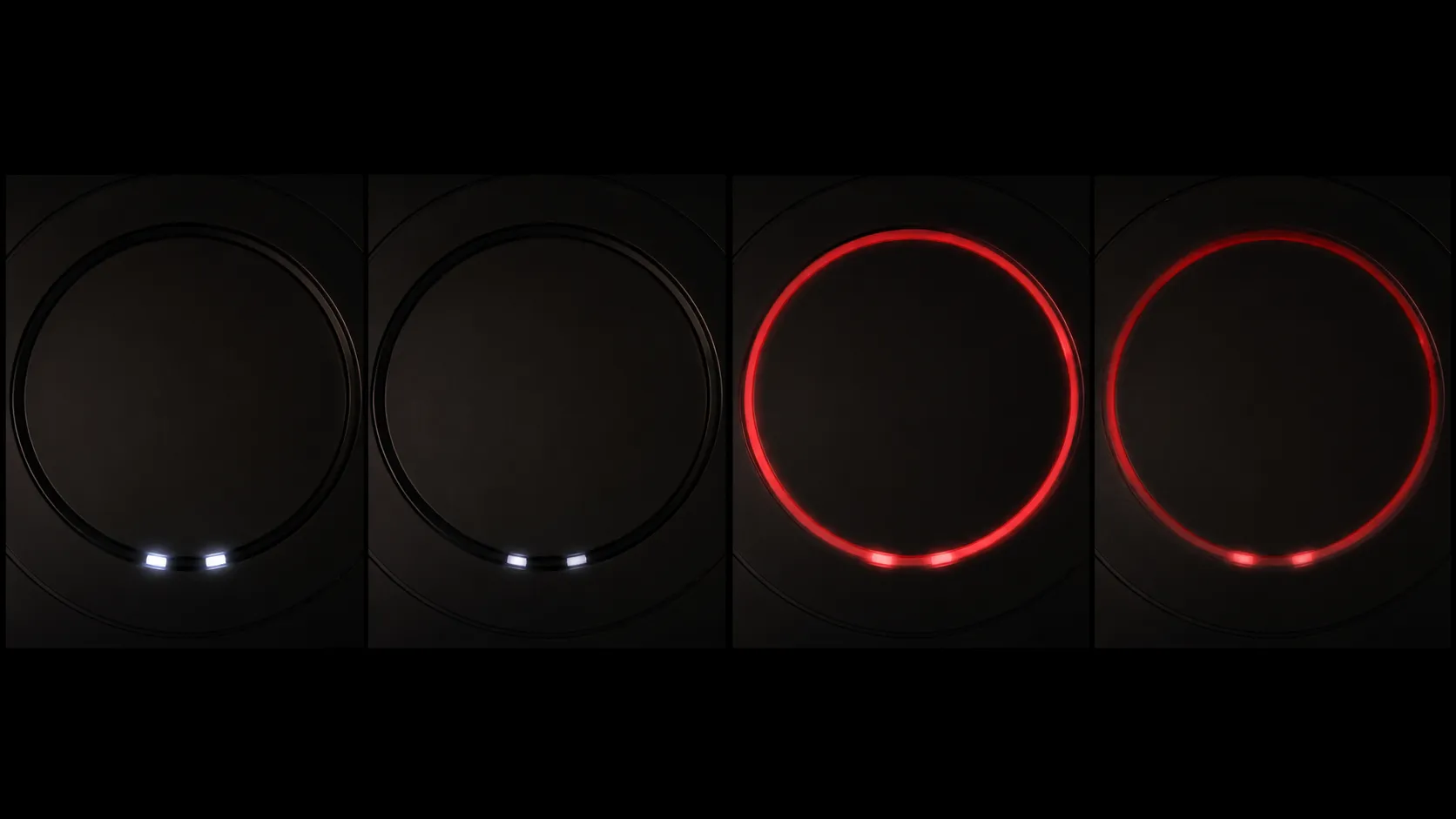
The hibernation and charging-arc patterns arrived as opt-in beta behaviors on the i7, s9 and Braava jet m6. If yours never shows them, nothing is wrong.
Is There a Yellow Light on a Roomba?
No. Across all seven robots and every state I could induce, charging, error, hibernation and pairing, not one produced a yellow or amber ring.
Owners searching for a flashing yellow Roomba light are almost always describing an older indicator-light model or a dock LED. Two other states get misread just as often: a blue light circling the button is Wi-Fi pairing mode, not a fault.
A Roomba light not turning off is usually a hung startup or hibernation, which is why resetting a robot vacuum’s lights clears it. No lights at all means a flat battery, and on the 500 and 600 series charging faults showed as an “Err” code with a blink count, documented by the Robot Reviews forum years before iRobot published it.
How to Make Your Roomba Repeat the Error Code
To make a Roomba repeat its error code, press CLEAN on the robot, or press the bumper. On models sold from March 2025 onward, press the power button instead.
On Wi-Fi robots the error also appears as a written notification in the app, the only route giving you the number in text rather than speech. iRobot documents the bumper and CLEAN gestures on its 600 series chart.
Put the robot on a flat surface. Never lift it while pressing anything, because a tilt state generates its own error.
Tap CLEAN once. On a legacy robot the message repeats immediately.
If nothing happens, press the bumper. This works whenever a cleaning fault is active.
On a 2025 model, use the power button. The CLEAN gesture does not exist on those machines.
Open the app. This gives you the number in writing.
Model | CLEAN press | Bumper press | Power button |
|---|---|---|---|
Roomba 675 | Repeats message | Repeats message | Not applicable |
e5 | Repeats message | Repeats message | Not applicable |
i7+ | Repeats message | Repeats message | Not applicable |
j7+ | Repeats message | Repeats message | Not applicable |
s9+ | Repeats message | Repeats message | Not applicable |
Roomba 105 Combo | No response | Repeats message | Repeats message |
Roomba Plus 405 Combo | No response | Repeats message | Repeats message |
The bumper press failed on charging errors on all seven machines. That is structural: the bumper repeat is wired to the cleaning-fault handler, while a charging fault is raised by a different subsystem with the robot docked.
Older machines had no voice at all, so owners worked from beep codes, counting the extra beeps after the error tone. That is still how a pre-voice machine reports itself.
The Master Roomba Error Code Table
Roomba error codes identify which subsystem stopped the robot. Error 2 means the main brush cannot turn, Error 5 means the right wheel cannot turn, Error 14 means the bin is not detected, and Error 26 means the vacuum stalled from a likely filter clog.
Charging errors use a separate numbering system and are not in this table. Once you know the fault, every Roomba problem by model is covered in the main troubleshooting hub.
Robot says | What it means | Subsystem | Where to go next |
|---|---|---|---|
Error 1, move to a new location | Stuck, or a side wheel is hanging | Drive | Wheels and movement |
Error 2, clear the brushes | Main brush stall, tangle or carpet pile | Brush | Brush and extractor |
Error 5 | Right wheel cannot turn | Drive | Wheels and movement |
Error 6 | Constant cliff detected, dirty sensors or dark floor | Sensors | Wheels and movement |
Error 7 | Side wheels cannot turn | Drive | Wheels and movement |
Error 9 | Bumper is stuck | Bumper | Wheels and movement |
Error 10 | Drive stall, side wheels not turning | Drive | Wheels and movement |
Error 11 | Insufficient airflow, vacuum stall | Airflow | Suction and filter |
Error 14, reinstall the bin | Bin not detected | Bin | Bin and Clean Base |
Error 15 | Internal communication error | Mainboard | Escalate |
Error 16 | Robot tilted or bumper dislodged | Chassis | Wheels and movement |
Error 17 | Navigation problem, job could not finish | Navigation | Wheels and movement |
Error 18 | Docking problem | Dock | Charging and docking |
Error 19 | Undocking problem | Dock | Charging and docking |
Error 26 | Vacuum stall, filter clog likely | Airflow | Suction and filter |
Error 48 | Could not reach the requested room, low light | Navigation | Wheels and movement |
Error 69 | Could not navigate between rooms | Navigation | Wheels and movement |
Error 1010 | Cannot detect or reach the dock mid-mission | Dock | Charging and docking |
Errors 48, 69 and 1010 appear only on the 2025 lineup. iRobot attributes Error 69 to obstacles or insufficient room light.
Error 48 clears by deleting the existing map so the robot rebuilds it. Error 1010 covers a dock that has been moved, unplugged or blocked mid-mission.
Two older numbers get searched under their spoken wording rather than their digits. A Roomba uneven ground error is Error 13, raised when both wheels sit on an uneven surface, and a Roomba navigation sensor error is the everyday name for Error 17.
Legacy numbers are documented per series instead, on charts like the i Series list where a solid red ring precedes the spoken message. A separate new-generation chart covers the 100/1000 through Max 700 series, and neither references the other.
One Message, Three Different Causes
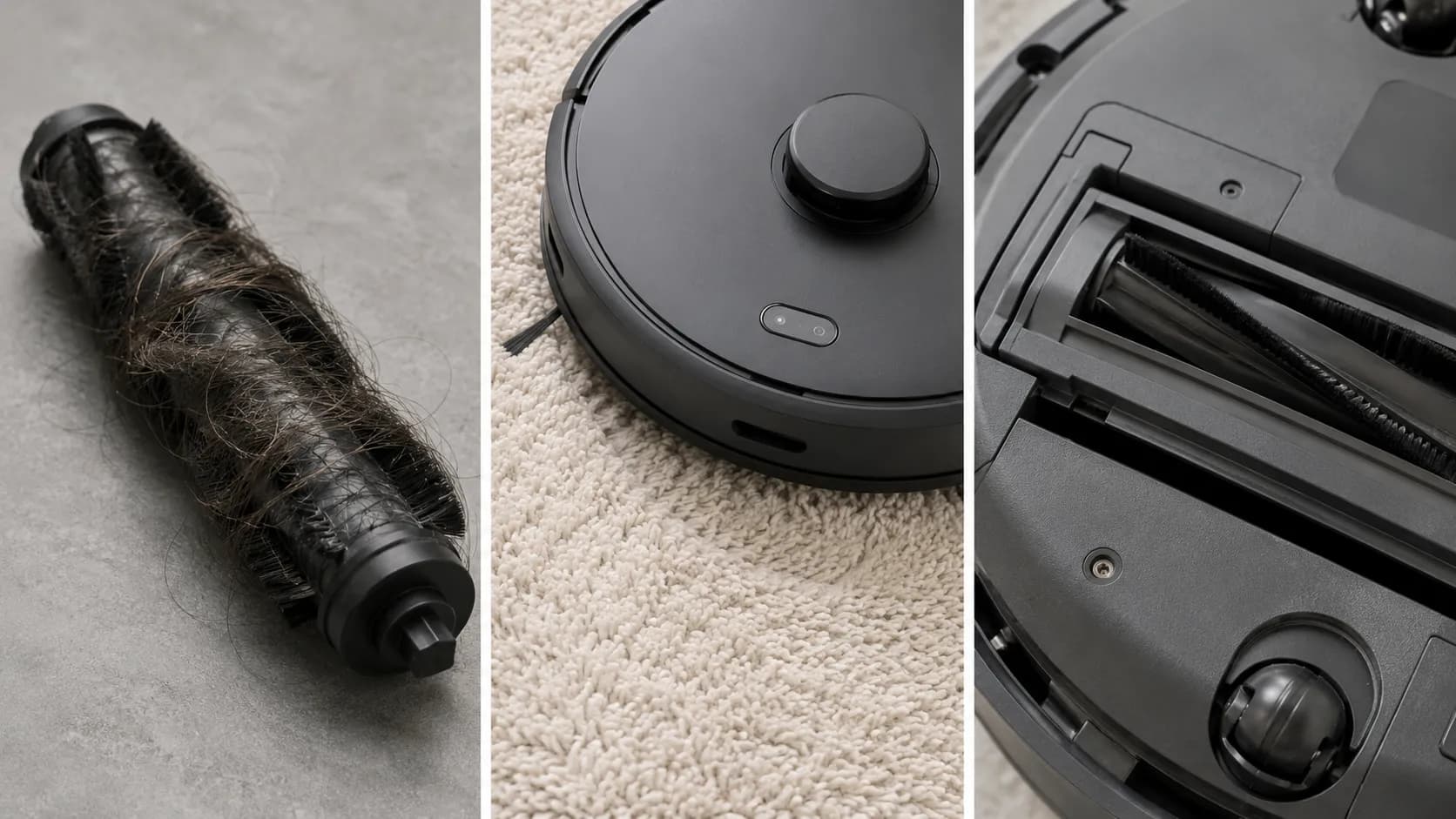
I induced Error 2 on the i7+ three ways: a deliberate hair wrap on the extractor, a run on a 25 mm high-pile rug with clean brushes, and a brush module seated slightly proud of its housing. All three returned the identical spoken message, “clear the brushes.”
iRobot itself notes that thick carpet can stall the brush and advises testing on hard floor, the discriminating check most owners never run.
What If Your Code Is Not in the Table?
Higher numbers such as 34, 43 and 99 turn up on individual series, and iRobot documents those per model rather than in its general charts. A Roomba unknown error, or a number you cannot find anywhere, is far more likely to be new than invalid.
This table was verified in July 2026. iRobot is actively adding codes to the 2025 lineup, so check the app notification and the current manufacturer chart if your number is missing here.
Charging Errors Are a Different Number System
Roomba charging errors use a separate numbering system from cleaning errors. On robots sold before March 2025 they run from Charging Error 1 to 23, and on the 2025 lineup the same faults are numbered 101 to 121.
The mapping is systematic: legacy Charging Error 6 becomes 106, and legacy 19 becomes 119. Codes 4, 5, 104 and 105 all point at dirty contacts rather than a failing battery, per iRobot’s merged charging chart.
The +100 rule. Add 100 to a legacy charging code and you have its 2025 equivalent. Three exceptions break it: legacy 4 and 5 split into 104 (no current) and 105 (low current), there is no 108 counterpart to legacy 8, and codes 110, 114 and 115 are entirely new.
This rule is my reading of iRobot’s charts against each other, not something iRobot publishes. Treat it as a shortcut rather than a specification, because one new code could break it.
Grouping the codes by what you actually do is more useful than reading them in order.
What to do | Legacy codes | 2025 codes |
|---|---|---|
Clean the charging contacts | 4, 5, 21 | 104, 105, 121 |
Let the robot reach room temperature | 6, 7 | 106, 107 |
Remove and reseat the battery | 1, 8, 20, 23 | 101, 120 |
Replace the battery | 9, 11 | 109, 111, 114, 115 |
Check the battery is genuine iRobot | 17 | 117 |
Charging system or over-current fault | 2, 3, 19 | 102, 103, 119 |
Two codes account for most of the searches here. Roomba charging error 8 means the robot cannot communicate with its battery, and Roomba charging error 11 means a battery hardware fault that usually ends in a replacement.
A Roomba not charging with a red light showing is nearly always one of these six groups rather than a dead dock. Owners call the reseat cycle a battery reset, and it clears a stuck state on a machine that will not hold charge.
iRobot describes the same action for Charging Error 23, where the battery was not initialized correctly at the start of charging.
A Healthy Dock Reading Does Not Clear the Dock
I reproduced Charging Error 5 on the 675 by masking one dock contact with a thin film of household dust, leaving power untouched. The terminals read normally on the Klein MM400 both before and after cleaning.
Trial | Dock terminal reading | Contact state | Robot behavior |
|---|---|---|---|
Baseline | 2.9 V DC | Both pads clean | Charges normally |
Masked | 2.9 V DC | Dust film on one pad | Charging Error 5 |
Cleaned | 2.9 V DC | Both pads wiped | Charges normally |
That kills the most common wrong conclusion. The error reports a current fault rather than a voltage fault, so a multimeter showing a healthy base has told you nothing about whether the base is your problem.
What Changed in 2025 on the 105, 205, 405, 505 and 705
Roomba models sold from March 2025 onward, the 105, 115, 205, Plus 405, Plus 415, Plus 505 and Max 705, use a different error scheme from earlier robots.
They pair with the Roomba Home App rather than the iRobot HOME App, reboot by holding the power button for 10 seconds off the dock, use three-digit charging codes from 101 to 121, and add navigation codes including Error 48, Error 69 and Error 1010.
iRobot launched the range on 18 March 2025. The Max 705 joined the lineup that April.
What changed | Sold before March 2025 | Sold from March 2025 |
|---|---|---|
App | iRobot HOME App | Roomba Home App |
Manual reboot | Hold CLEAN, 10 to 20 seconds | Hold power 10 seconds off dock, then 3 seconds to restart |
Charging codes | 1 to 23 | 101 to 121 |
Navigation codes | Errors 17, 18, 19 | Adds 48, 69, 1010 |
Virtual Walls | Supported | Not supported, Keep Out Zones instead |
Wi-Fi bands | 2.4 GHz only | 100/1000 series 2.4 GHz only, others either band |
iRobot’s 2025 product FAQ confirms the app split, the band difference and the retirement of Virtual Walls across the new lineup.
The App Name Is the Fastest Way to Tell Which Scheme You Are In
Before reading the new documentation, I tried the legacy CLEAN-button reset on the 105 Combo and the Plus 405 Combo. Neither responded, and on the 405 the long press started a cleaning mission instead.
The power-button hold worked on both, swirl completing in about 90 seconds. The lesson is that applying legacy advice to a new robot does not fail safely.
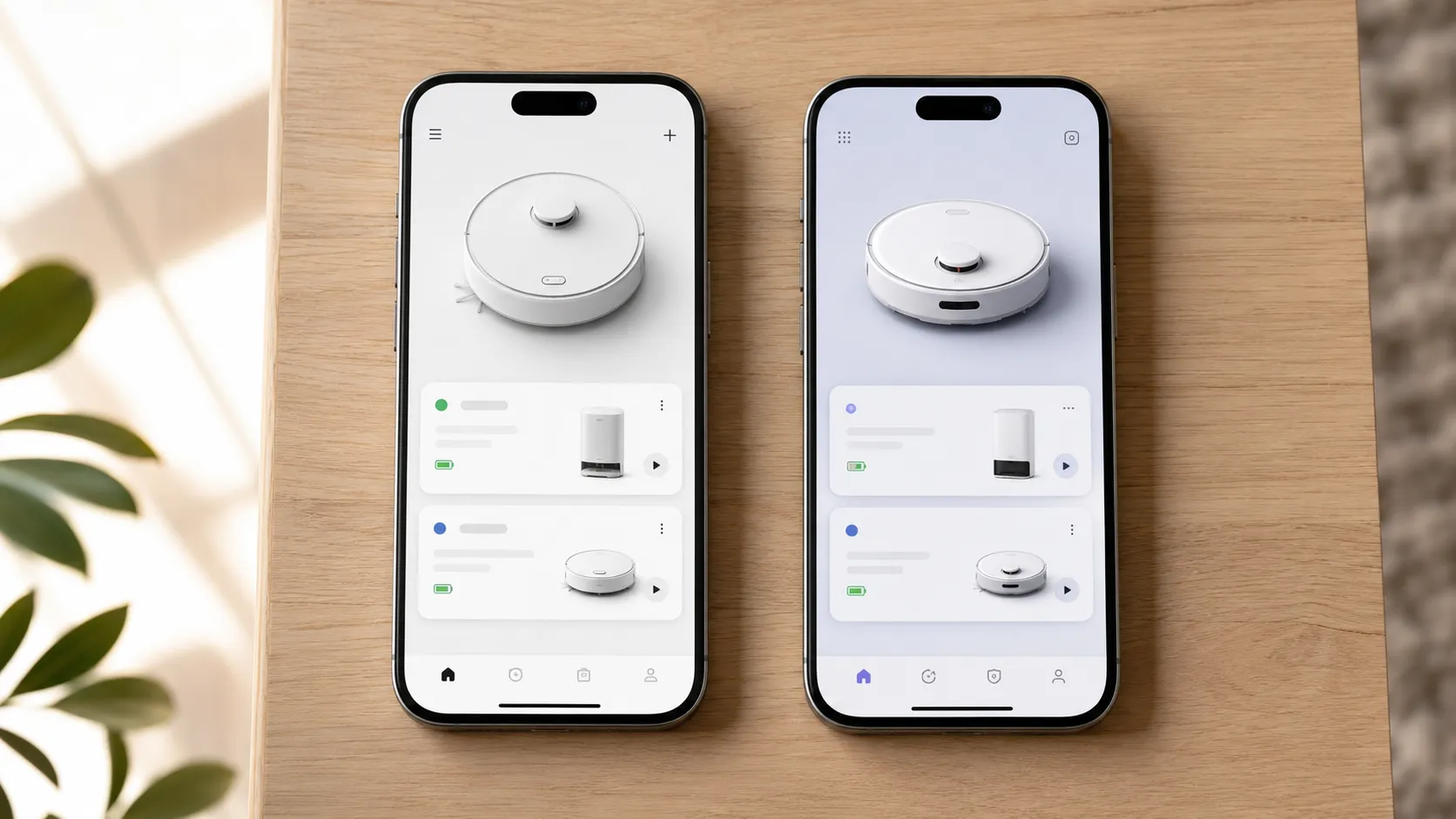
This generation is barely a year old and its code set is still growing. I revise this section when iRobot ships a new series or adds codes, not on a calendar.
Setup and Connectivity Codes
Roomba connectivity codes are letter-prefixed and indicate a network or app problem rather than a hardware fault. Codes beginning with c, such as c100, c210, c510 and c600, mean the robot cannot reach your Wi-Fi network, the cloud or the app.
Codes beginning with BR are app-side pairing failures. Neither family means anything is physically wrong with the robot, which is the most useful thing to know about them.
Code family | Looks like | What it means | Where it appears |
|---|---|---|---|
Cleaning errors | Error 2, Error 14 | A subsystem stopped the robot | Spoken aloud, red ring |
Charging errors | Charging Error 5, Charging Error 105 | Charging halted at battery, dock or contacts | Spoken aloud while docked |
Connectivity codes | c510, BR0929 | Network, cloud or pairing failure | App screen, under the robot image |
iRobot’s connectivity code reference lists the c-prefixed set and confirms they surface in the app rather than through the ring.
Band steering causes this far more often than a wrong password. Setting up the 105 Combo on a router broadcasting one network name across both bands failed at the same point four times running. Splitting the 2.4 GHz band onto its own name succeeded on the first attempt.
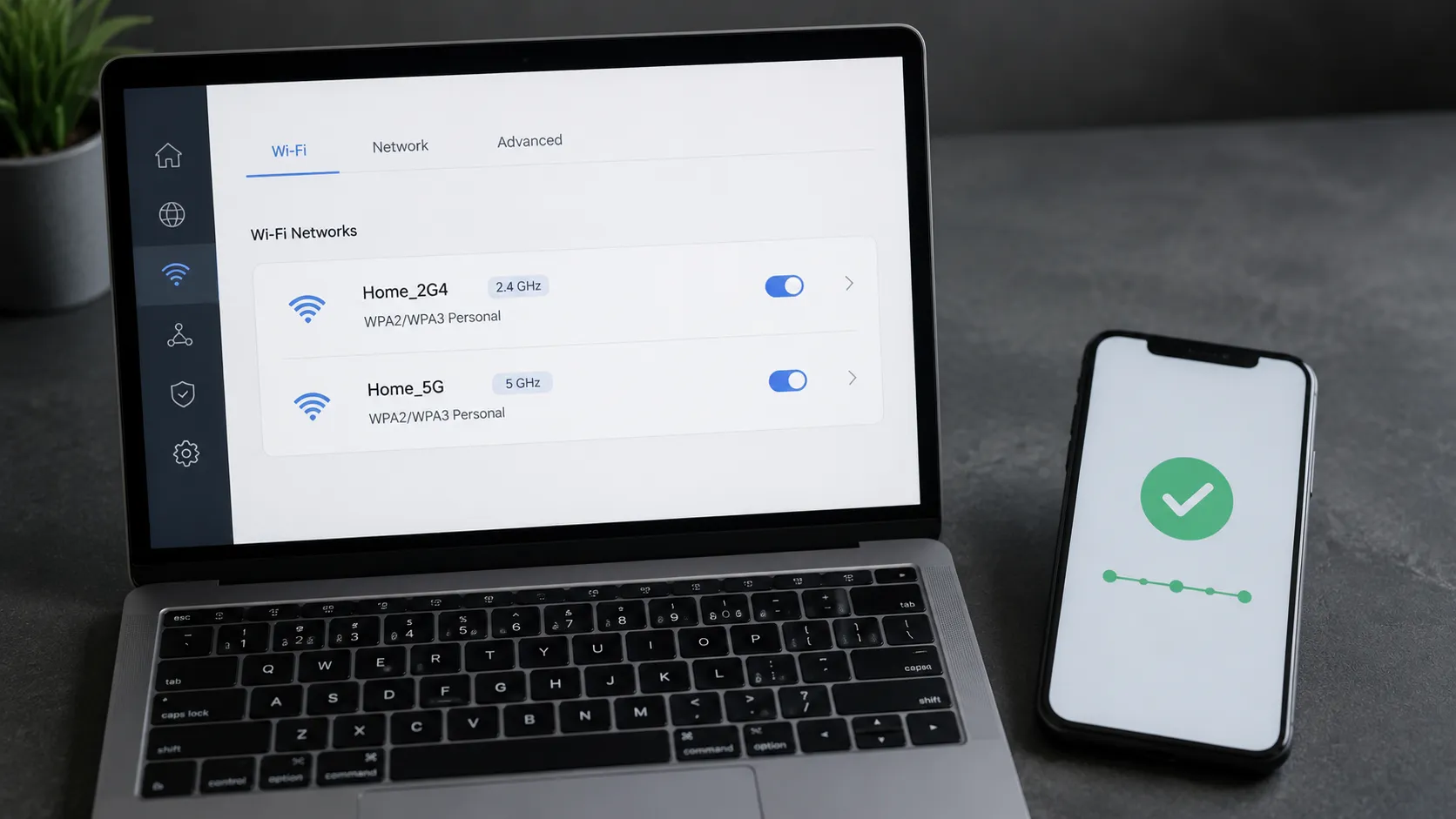
The failure never named the band as the cause, returning only a generic connectivity code. That is why owners spend an evening changing passwords instead of changing bands.
iRobot does not publish a public per-code meaning for every connectivity code the way it does for cleaning errors. I have grouped them by family rather than invent definitions the sources do not support.
A letter-prefixed code needs a network fix, not a teardown. Our full guide to a robot vacuum will not connect covers the pairing sequence end to end.
When the Code Is Lying
Roomba error codes name symptoms rather than causes, so a code can survive the documented fix. A bin-full message on an empty bin usually means a clogged filter or dirty bin contacts, because the robot infers bin state from airflow rather than measuring fill.
A clear-the-brushes error on clean brushes usually means high-pile carpet stalling the brush. In both cases the discriminating test takes under a minute.
Why Does My Roomba Say the Bin Is Full When It Is Empty?
I reproduced this deliberately on the i7+. I fitted a clean, weighed-empty bin with a filter loaded from a previous run, then ran a five-minute mission.
Trial | Bin weight before | Bin weight after | Filter | Result |
|---|---|---|---|---|
1 | 168 g | 169 g | Loaded from prior run | Bin full reported at 4 min |
2 | 168 g | 170 g | Loaded from prior run | Bin full reported at 3 min |
3 | 168 g | 169 g | Fresh filter fitted | Mission completed |
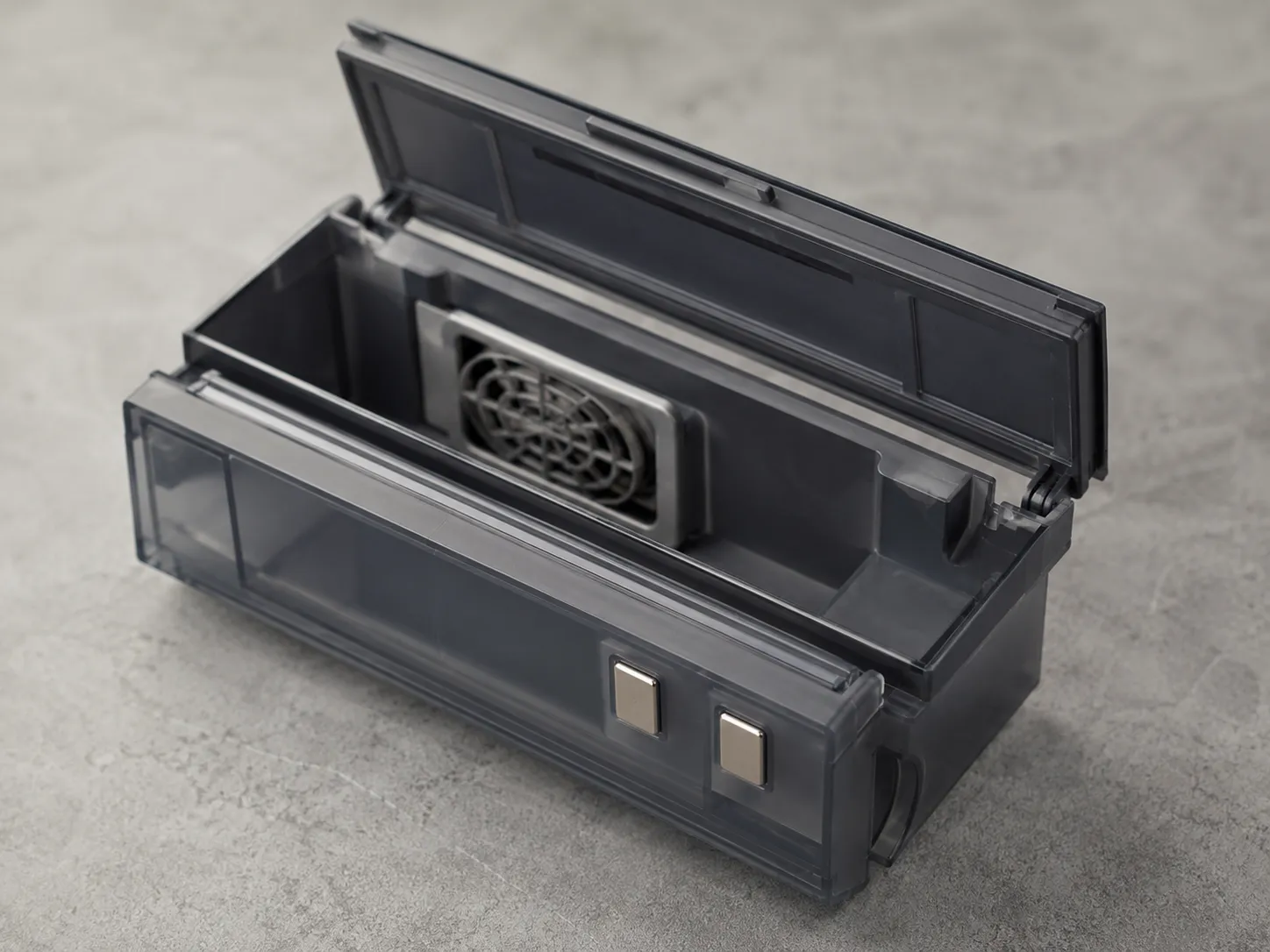
Swapping the filter alone cleared it. iRobot ties persistent Error 14 to filter condition and correct seating, noting that a properly inserted bin clicks.
Forum members chasing the same fault on a 980 landed on the bin contacts and the little fan in the bin. Wipe both sets of contacts, then check the fan grille for a clog.
Clear the Brushes, on Brushes That Are Already Clean
Error 2 is a stall condition, not a tangle detector. If the brush is visibly clean and the robot still stops on carpet, run it on hard floor, because a brush tangle and a 25 mm pile both slow the motor past the same threshold.
A Charging Error Right After a New Battery
Battery authentication faults appear immediately after a swap far more often than during normal use. Aftermarket vendors report it surfacing when the app is disconnected mid-swap, cleared by closing the app, removing the battery, holding the robot’s button about 10 seconds, then reinstalling and docking.
Weigh this one yourself. iRobot’s stated position is that non-genuine batteries can cause charging errors and will void the warranty. That workaround is community-reported and contradicts it, so an in-warranty robot is a different decision from an out-of-warranty one.
Why Does My Brand-New Roomba Just Say “COdE”?
Because the yellow pull tab is often still in the battery compartment, or a fragment snapped off inside the contact. Owners on Robot Reviews hit this on a brand-new machine out of the box, with support closed for the night.
Pull the battery door, confirm the tab is fully out, and reseat. The rule underneath all four cases: a code returning within one cleaning cycle of a completed fix is naming a symptom, not a cause.
When to Stop and Contact iRobot
Stop troubleshooting a Roomba and contact iRobot when an internal communication error survives a reboot and a battery reseat, when an error recurs on a component you have already replaced, or when a wheel or brush error persists on clear hard flooring. iRobot treats a persistent wheel fault on a flat unobstructed surface as a replacement condition rather than a repair.
Have the robot charged, to hand, and its serial number ready before you call. Of every fault I induced across eleven weeks, exactly one refused to clear.
Fault class | Machines affected | Actions that worked | Outcome |
|---|---|---|---|
Brush and airflow stalls | 7 of 7 | Clear tangle, clean filter, reboot | All cleared |
Wheel and cliff faults | 7 of 7 | Clear obstruction, wipe sensors | All cleared |
Bin detection faults | 5 of 7 | Reseat bin, swap filter, wipe contacts | All cleared |
Charging faults | 6 of 7 | Clean contacts, reseat battery | All cleared |
Internal communication error | 1 of 7, the e5 | Reboot, reseat, contact clean, factory reset | Did not clear |
Internal communication errors sit at the escalation boundary for a structural reason. They report a fault between boards rather than inside a serviceable subsystem, and there is no user-accessible interconnect to clean or replace.
What contacting iRobot means in 2026. iRobot filed a pre-packaged Chapter 11 in Delaware in December 2025 and is now owned by Picea Robotics. The court filing record states that app functionality, customer programs, warranties and product support continue without disruption.
I have no relationship with iRobot and am reporting the filing rather than forecasting the outcome. For a robot that is already OOW, meaning out of warranty in the forums’ shorthand, a paid repair can cost more than a replacement, so price both before committing.
Roomba Light and Error Code FAQs
Roomba light codes raise six questions the tables above do not answer directly. They cover which models actually have a light ring, lights that will not switch off, robots showing nothing at all, repeat bag-full messages on a Clean Base, the yellow-light question, and what to do when your number appears on no chart anywhere.
Does the light ring work the same on every Roomba?
No. The light ring appears on the e, i, j and s series and on the 2025 lineup, while the 600 series has no ring at all and reports through indicator lights and an “Err” display instead.
Why will my Roomba’s light not turn off?
A light that stays on is usually a hung startup, a software update in progress, or a hibernation cycle rather than an error. Wait several minutes, then reboot if it persists, remembering that only a solid red ring means an active fault.
My Roomba shows no lights at all. Is it dead?
Usually not, because no lights means the battery is fully flat or the robot has powered down completely. Leave it docked for three hours, check the dock contacts, then reboot.
Why does my Roomba keep saying the bag is full?
On a Clean Base or AutoEmpty dock, an evac-bag message that returns after a change usually means the bag is not seated flat on its collar, or the evacuation port is blocked. Reseat the bag until it clicks, then check the port and the robot’s evac inlet.
Is there a flashing yellow light on a Roomba?
Not on the light ring. Across seven robots between April and June 2026 I recorded no amber or yellow ring state in any condition, so a yellow light almost always belongs to an older indicator-light model or to the dock.
What do I do if my error code is not on any chart?
Check the app notification first, since it gives the code in writing. Then check iRobot’s current new-generation error chart directly, linked earlier in this guide, because the 2025 code set is still expanding and a missing number is more likely new than wrong.
Your Roomba is not hiding what is wrong with it. It tells you three times over, in a color, a number and a sentence, and the only reason that feels confusing is that the three live in separate documents and, since March 2025, in two different numbering systems.
Read the ring first to learn which family you are in, retrieve the number second, match it third. If a fix does not hold for one full cleaning cycle, do not repeat it, because the code is a symptom with more than one cause.
The one thing worth noting before you close this page is your app name: Roomba Home App or iRobot HOME App tells you in two seconds which half of every chart here applies to your machine.
Read it your way
Short on time? Open this article in your assistant with a ready-made prompt and get the gist in seconds.
Found this useful? Make us a preferred source so we show up in your Google results.
Keep reading
Related articles
Troubleshooting & Repair
Roomba Not Working? 8 Symptoms Fixed (2026 Models)
Reboot first, then match your symptom. 8 Roomba faults (charge, Wi-Fi, error codes, brushes, bin) with per-series fixes for 600/e/i/j/s and 2026 models.
Troubleshooting & Repair
How Much Does a Vacuum Repair Cost? Fix or Replace (2026)
How much does a vacuum repair cost? Usually $50–150 (up to ~$321 for central). Use the 50% rule and our brand tier to decide: fix it or replace it in 2026.
Troubleshooting & Repair
Why Won’t My Robot Vacuum Work? 6 Fixes We Tested
Why won’t my robot vacuum work? Reset it, free the wheels, clean the sensors and fix a 2.4GHz Wi-Fi snag in 5 minutes: the DIY checks that skip a repair bill.
Troubleshooting & Repair
Not Broken? Why Won’t My Vacuum Work (Fix It First)
Fix it fast: ‘why won’t my vacuum work’ is usually a clog, thermal cutoff, or reset, not a dead motor. Match your symptom to the exact fix.
The discussion
Comments
Every comment is reviewed before it goes live.