Roomba Won’t Turn On? Every Reset, Ranked (2026 Button Map)
Fix a Roomba that won’t turn on: reboot (CLEAN or POWER), the 30-second Ship Mode wake, contacts, battery and factory reset, with the 2026 button map.
Written by Reggie AlvarezReviewed by Dale FerrisLast updated on August 12, 2026
When you buy parts or vacuums through links on our site, we may earn a commission at no extra cost to you. It never changes what we recommend. Learn more.
Read it your way
Short on time? Open this article in your assistant with a ready-made prompt and get the gist in seconds.
Found this useful? Make us a preferred source so we show up in your Google results.
The 30-second answer. A Roomba that won’t turn on is usually dormant rather than broken. Separate the two faults first. If the Roomba shows no light and no tone on the dock after 60 seconds, it has no power, and the fix is a reboot or a Ship Mode cycle.
If the light ring comes on or the robot speaks but will not clean, it has power and something is blocking it. Each branch has its own fix.
Roomba Won’t Turn On? Dead or Just Frozen
A Roomba with no power and a Roomba with power that refuses to act look identical from across the room, yet they share almost no fixes. Dock the Roomba, leave it a full 60 seconds, and watch the light ring.
iRobot’s troubleshooting flow branches on this same observation without ever naming it, which is why most owners skip it and start pulling screws.
After 60 seconds on the dock | Branch | Start at |
|---|---|---|
No light, no tone, no sound, nothing in the app | Dead: no usable power | Fix 1, the reboot |
Any light, tone, spoken message or app status | Frozen: powered but blocked | The lights-up section |
I ran this triage on nine Roombas between 12 February and 20 March 2026, five classic and four from the 2025 line. Six lit up inside the first minute.
Unit | Generation | At 60 seconds | Branch | What fixed it |
|---|---|---|---|---|
Roomba 675 | Classic | Nothing | Dead | Reboot |
Roomba e5 | Classic | Faint tone | Frozen | Bin sensor |
Roomba i3 | Classic | Nothing | Dead | Battery reseat |
Roomba j7 | Classic | Light ring | Frozen | Cleared error |
Roomba s9+ | Classic | Light ring | Frozen | Cleared error |
Roomba 105 Combo | 2025 | Nothing | Dead | Ship Mode cycle |
Roomba 205 | 2025 | Light ring | Frozen | Schedule off |
Roomba Plus 405 | 2025 | Light ring | Frozen | Full bin |
Roomba Max 705 | 2025 | Light ring | Frozen | App disconnect |
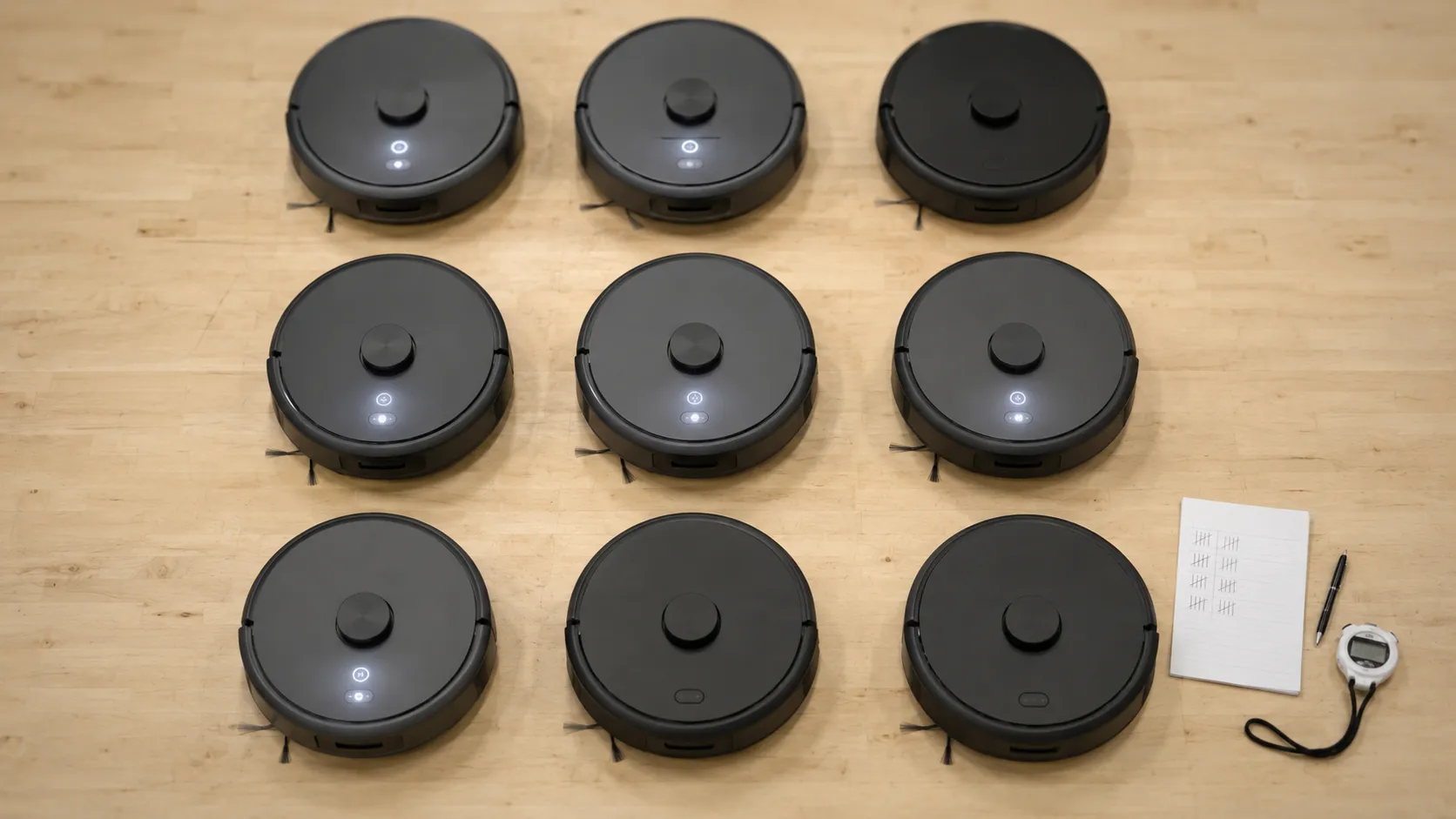
This tells you where to start, not what is wrong. A Roomba showing a light can still have a battery on its last month.
First, Find Your Button: CLEAN or POWER
Roomba reset instructions depend on your generation. Roomba models sold before March 2025, the 600, e, i, j, s and Combo 10 Max series, reboot on a CLEAN hold and pair with the iRobot Home (Classic) app.
Roomba models from the 2025 lineup, the 105, 205, Plus 405, Plus 505 and Max 705, reboot on a POWER hold and pair with the separate Roomba Home app. Holding the wrong button produces no response at all.
There is no dedicated reset button on any Roomba. The button you already have is the reset button, and on a 2025 machine it is not the one most guides name.
Generation | Example models | Reset button | App | Factory reset |
|---|---|---|---|---|
Classic, pre March 2025 | 675, e5, i3, j7, s9+, Combo 10 Max | CLEAN | iRobot Home (Classic) | CLEAN, SPOT CLEAN and HOME together |
2025 lineup | 105, 205, Plus 405, Plus 505, Max 705 | POWER | Roomba Home | In-app, Product Settings |
Accurate as of July 2026. Check the app store listing if your robot is newer than this table.
The Roomba Home listing covers the 100, 200, 400, 500 and 700 series sold after March 2025, while the iRobot Home Classic listing covers the e, i, s, m, j, Essential and 10 Max robots.
Your model number is printed on the underside of the robot.
I held CLEAN for a full 20 seconds on a Roomba 205 to see what a mismatched instruction does. Nothing happened: no light, no tone, no error, no app event, which is exactly why owners of these machines decide the robot is bricked.
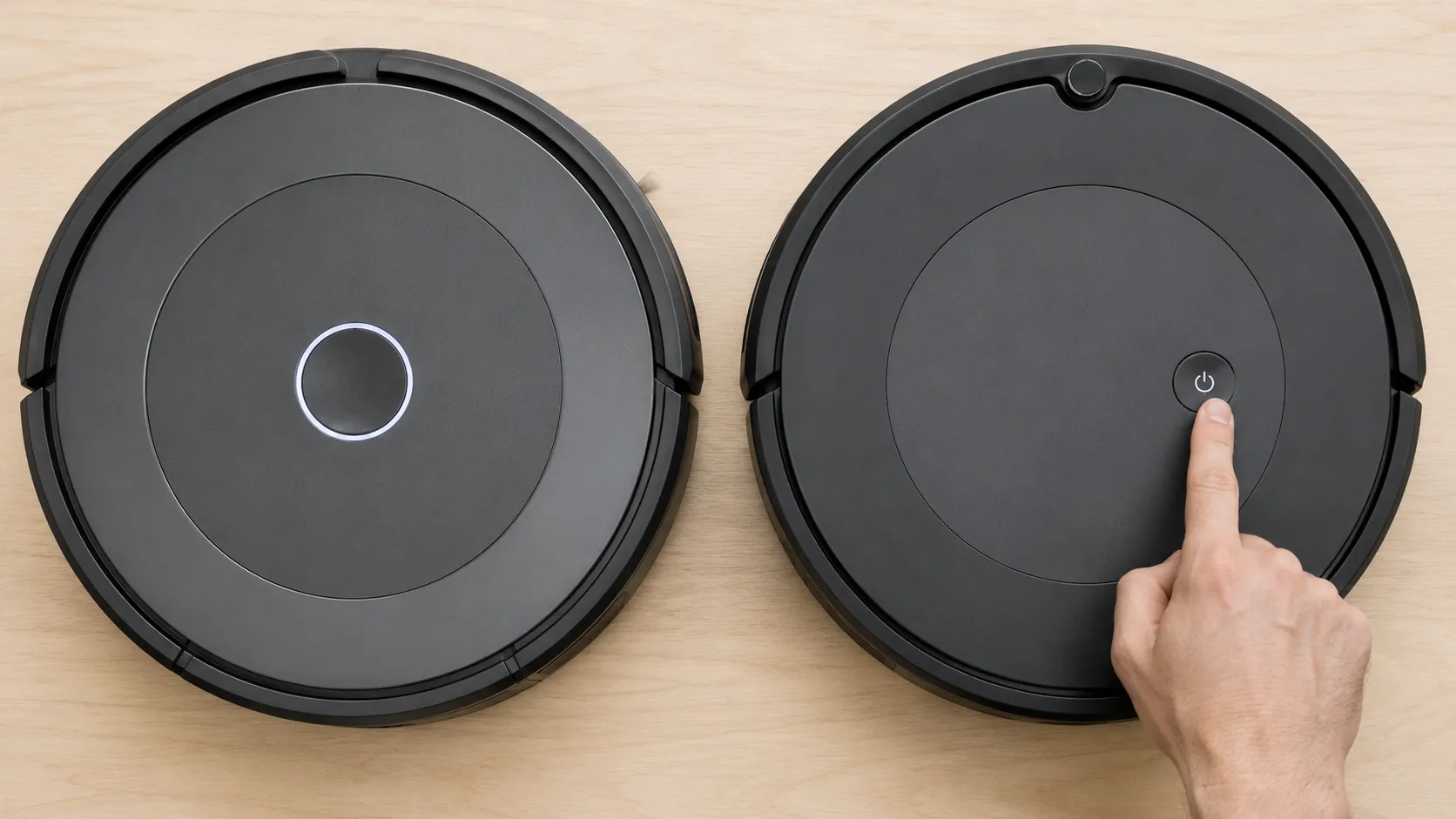
iRobot’s new arrivals page is now entirely 2025 hardware, and the launch announcement dates availability to 18 March 2025. Anything bought new since then wants POWER.
Fix 1: Reboot Your Roomba
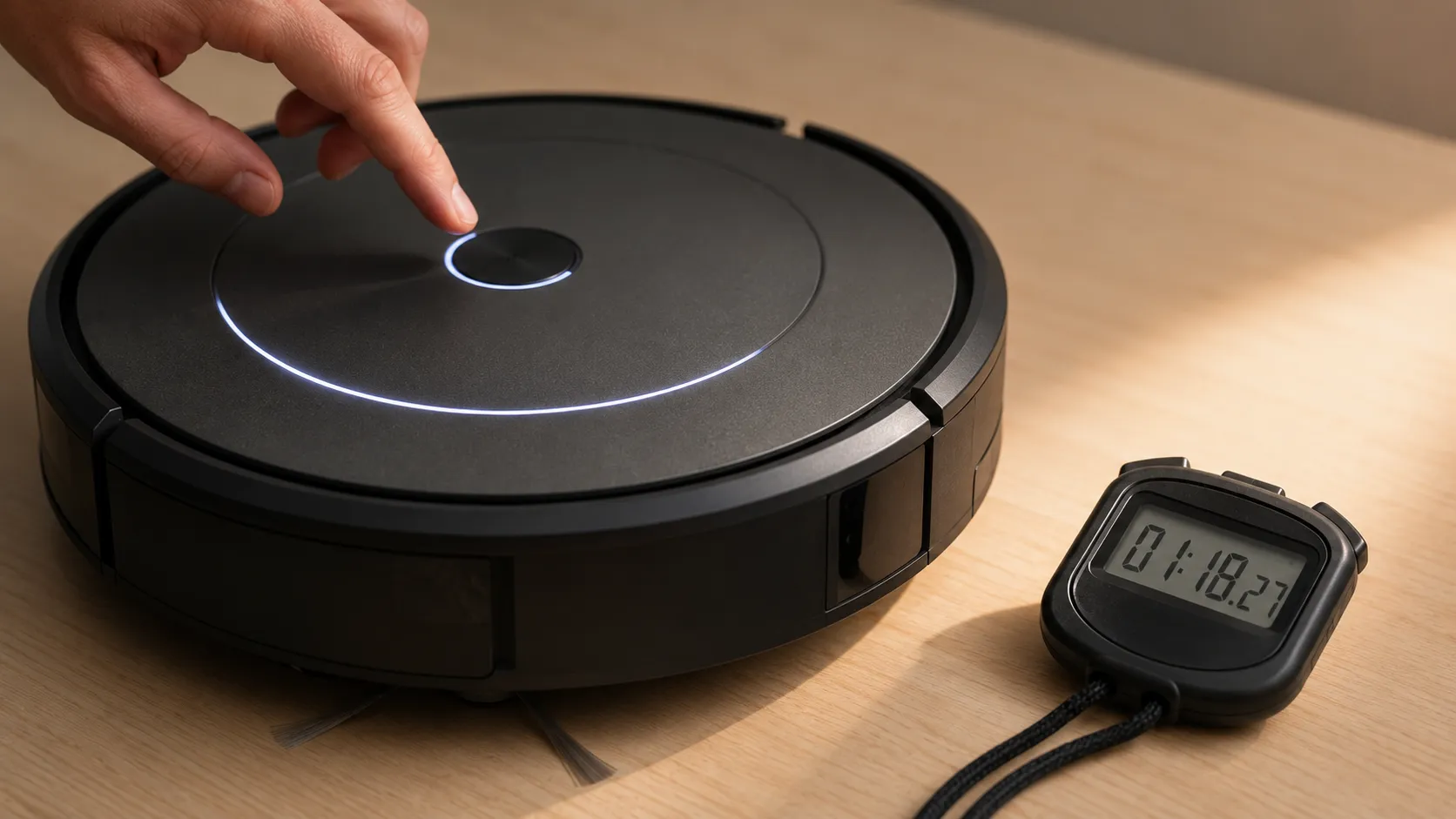
To reboot a Roomba that won’t turn on, hold the reset button for your generation: CLEAN for 10 seconds on the 700, 800 and 900 series, CLEAN for 20 seconds on the i series, POWER on 2025 models. Release and wait.
The light ring swirls clockwise in white, and iRobot’s reboot documentation allows up to a minute and a half for the robot to come back. The reboot is finished when the ring goes dark.
Who it’s for: any Roomba on the dead branch, and any frozen Roomba stuck mid-error.
Time: 2 minutes.
Difficulty: Easy.
Take the Roomba off the dock and set it on a flat surface.
Hold the reset button for your generation, using the table above.
Release when the light ring swirls, or when an older model plays its reboot tone.
Wait a full 90 seconds without touching anything.
What you should see: the ring swirls clockwise in white, then goes dark. The dark ring is the reboot finishing, not the robot dying.
Unit | Button | Hold | Time to first light | Time to ring off |
|---|---|---|---|---|
Roomba 675 | CLEAN | 10 sec | 6 sec | 41 sec |
Roomba i3 | CLEAN | 20 sec | 34 sec | 78 sec |
Roomba j7 | CLEAN | 20 sec | 29 sec | 71 sec |
Roomba s9+ | CLEAN | 20 sec | 22 sec | 66 sec |
Roomba 105 Combo | POWER | 20 sec | 11 sec | 52 sec |
Roomba Max 705 | POWER | 20 sec | 9 sec | 48 sec |
My slowest unit, the i3, sat silent for 34 seconds after I let go. iFixit’s i7 wiki puts the ceiling higher still at two minutes, worth knowing before you quit at 30 seconds.
A reboot erases nothing. Maps, schedules and Wi-Fi credentials all survive it.
If two reboots change nothing, stop rebooting. The fault is not a hung software state.
If it didn’t work: try the Ship Mode cycle below.
Roomba Won’t Wake Up on the Dock? The 30-Second Ship Mode Cycle
A Roomba that won’t wake up is often dormant rather than dead, and a Ship Mode cycle restores it. Take the Roomba off the dock, set it on a flat level surface, and hold POWER for at least 30 seconds.
Release, then tap POWER once and confirm no lights come on, which means Ship Mode is set. Return the Roomba to the dock within four minutes and it should power on, though it can take 30 seconds to respond.
Who it’s for: 2025 models that die off the dock, show no rising battery percentage, or sit unresponsive.
Time: 5 minutes.
Difficulty: Easy.
Take the Roomba off the dock.
Set it on a flat, level surface, not carpet.
Hold POWER for at least 30 seconds.
Release, tap POWER once, and confirm no lights come on.
Return it to the dock within four minutes.
Leave it alone for 30 seconds before deciding anything.
What you should see: the robot powers on by itself, sometimes after a noticeable pause.
iRobot lists this as a known issue on the 100, 200, Plus 400, Plus 500 and Max 700 series and publishes the cycle above as the fix. That is candid for a manufacturer, and it sits inside a collapsed branch of a not-charging article where nobody hunting a dead robot will find it.
The four-minute window is a real constraint. I ran the cycle twice on one Roomba 105 Combo, re-docking at 2 minutes and then deliberately at 6, and the first attempt woke it in 24 seconds while the second left it dark until I repeated the whole cycle.
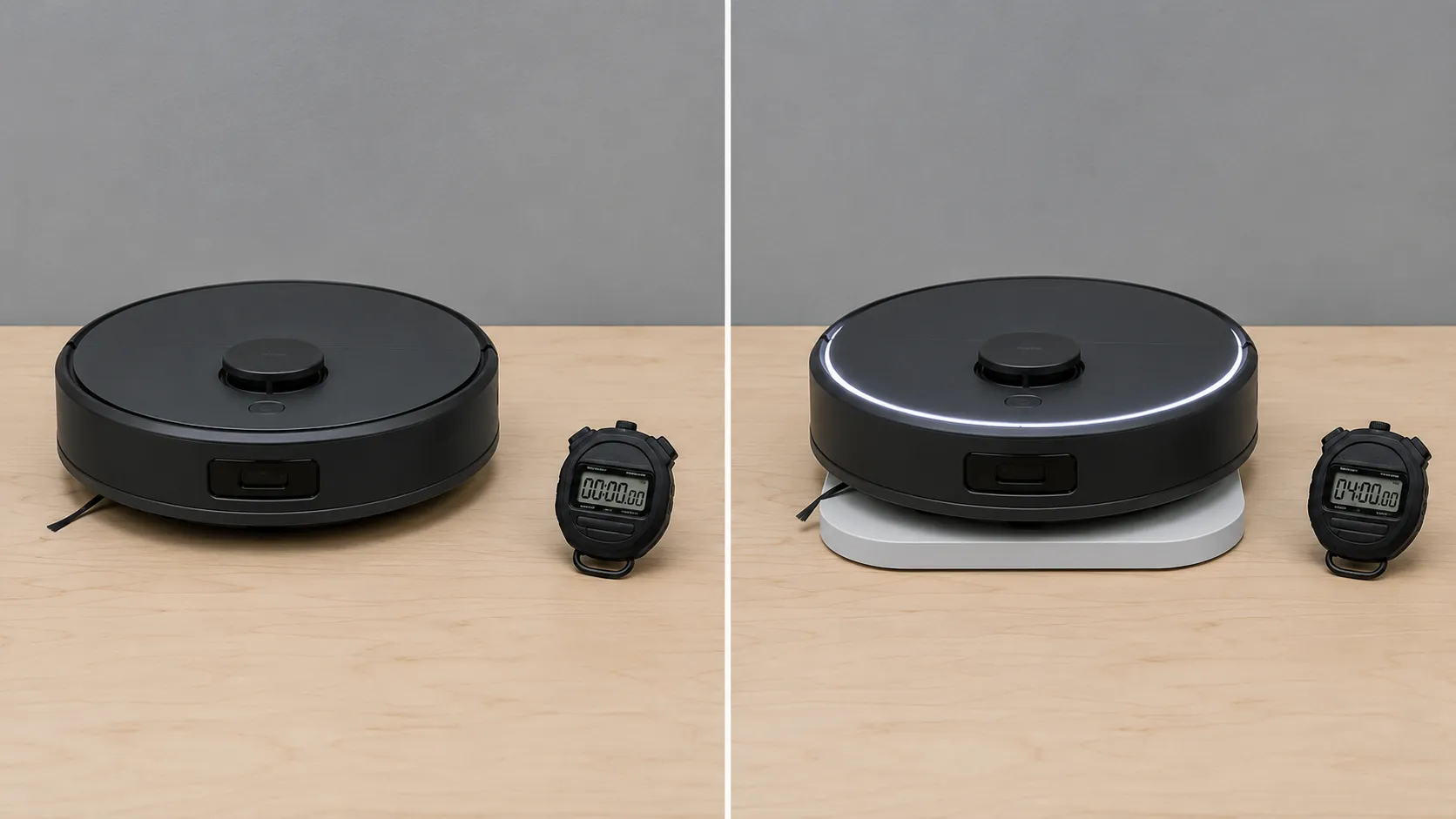
Classic Roombas differ. On a 600, e, i, j or s series machine docking is the wake, and iRobot’s unboxing guide confirms a new robot ships dormant and takes about a minute on the dock with a white light spinning.
If it didn’t work: the power path itself is next.
Fix 3: Charging Contacts, Caster Wheel and Dock Power
If a Roomba won’t turn on and the dock shows no light, the physical power path is broken. Confirm the Home Base is plugged firmly into a working outlet and sitting on a hard flat surface, then clean the metal contacts on both the Roomba and the dock with a lightly dampened melamine sponge.
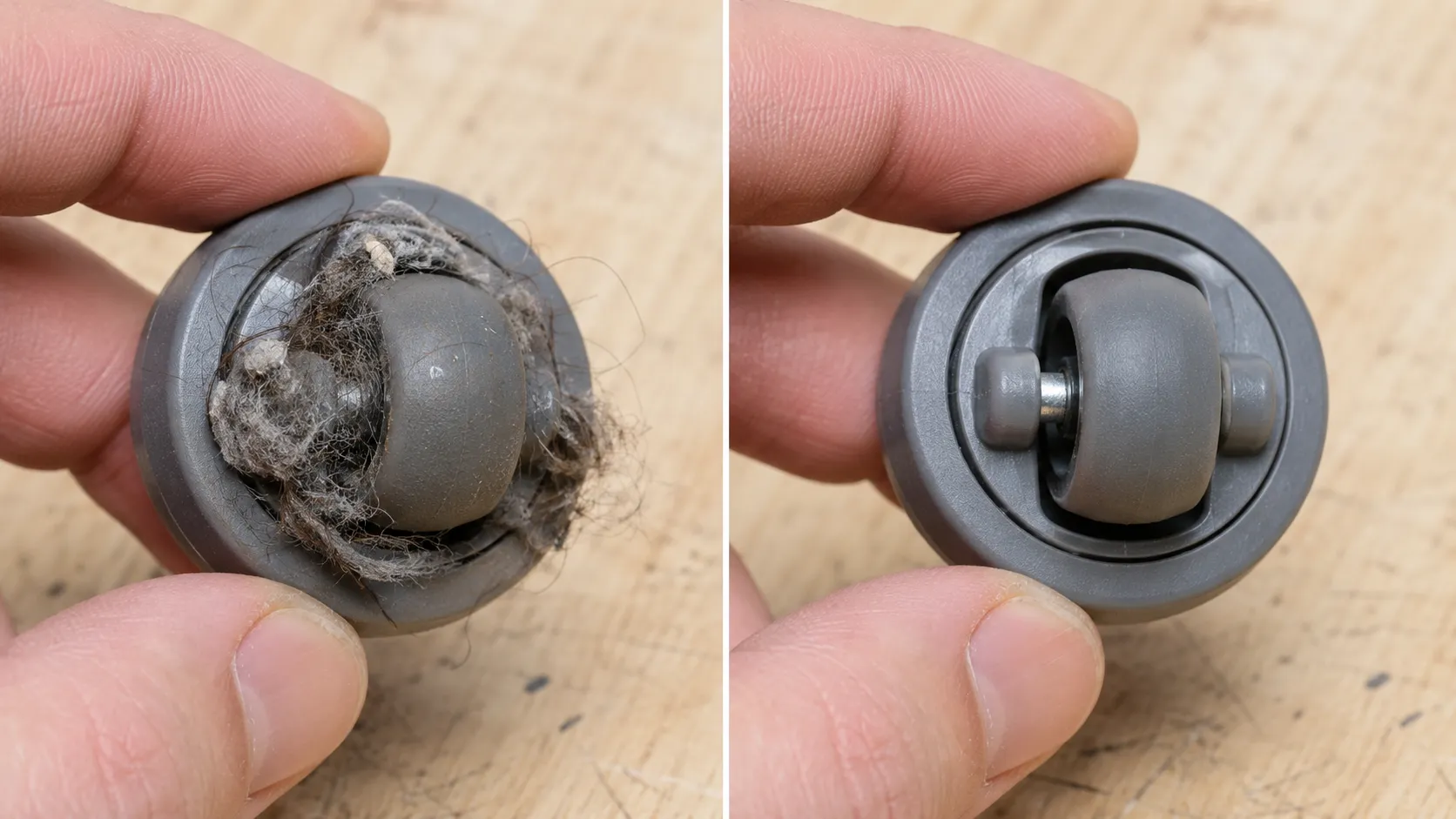
Flip the Roomba over, pull the caster wheel, and clear any packed debris, because a clogged caster lifts the robot off its contacts entirely.
Unplug the dock from the wall before touching any contact or cord. Cord damage means a new dock, not tape.
Who it’s for: any Roomba showing nothing on the dock, and any dock whose indicator never lights.
Time: 10 minutes.
Difficulty: Easy.
Test the outlet, then push the plug firmly into both the dock and the wall.
Move the dock onto a hard flat surface, off carpet and rug edges.
Seat the Roomba with roughly 1cm to half an inch between dock and bumper, because pushing it fully in breaks the connection.
Clean the contacts on robot and dock with a lightly dampened melamine sponge.
Bend tab contacts gently upward afterwards. Clean spring contacts with a soft toothbrush and isopropyl, then pull them gently up.
Turn the robot over, pull out the caster wheel, and clear the debris around its axle.
What you should see: the dock indicator lights, then the robot’s ring illuminates and goes dark after about a minute while charging continues.
That tab-versus-spring distinction comes from iFixit’s Roomba charging page. iRobot’s i Series article names the caster wheel as a cause but files it under charging, where a dead-robot owner never looks.
Seating matters more than cleanliness. I packed a Roomba j7’s caster with hair and lint until it would not rotate freely, the robot stopped charging on contacts I had cleaned ten minutes earlier, and clearing the wheel restored charging on the first re-dock.
If the dock now lights but the robot still shows nothing, work through the full Roomba troubleshooting walkthrough before blaming the battery. A robot that powers on but simply will not fill is a charging fault with its own guide.
If it didn’t work: the battery is next.
Fix 4: Reseat and Wake the Battery
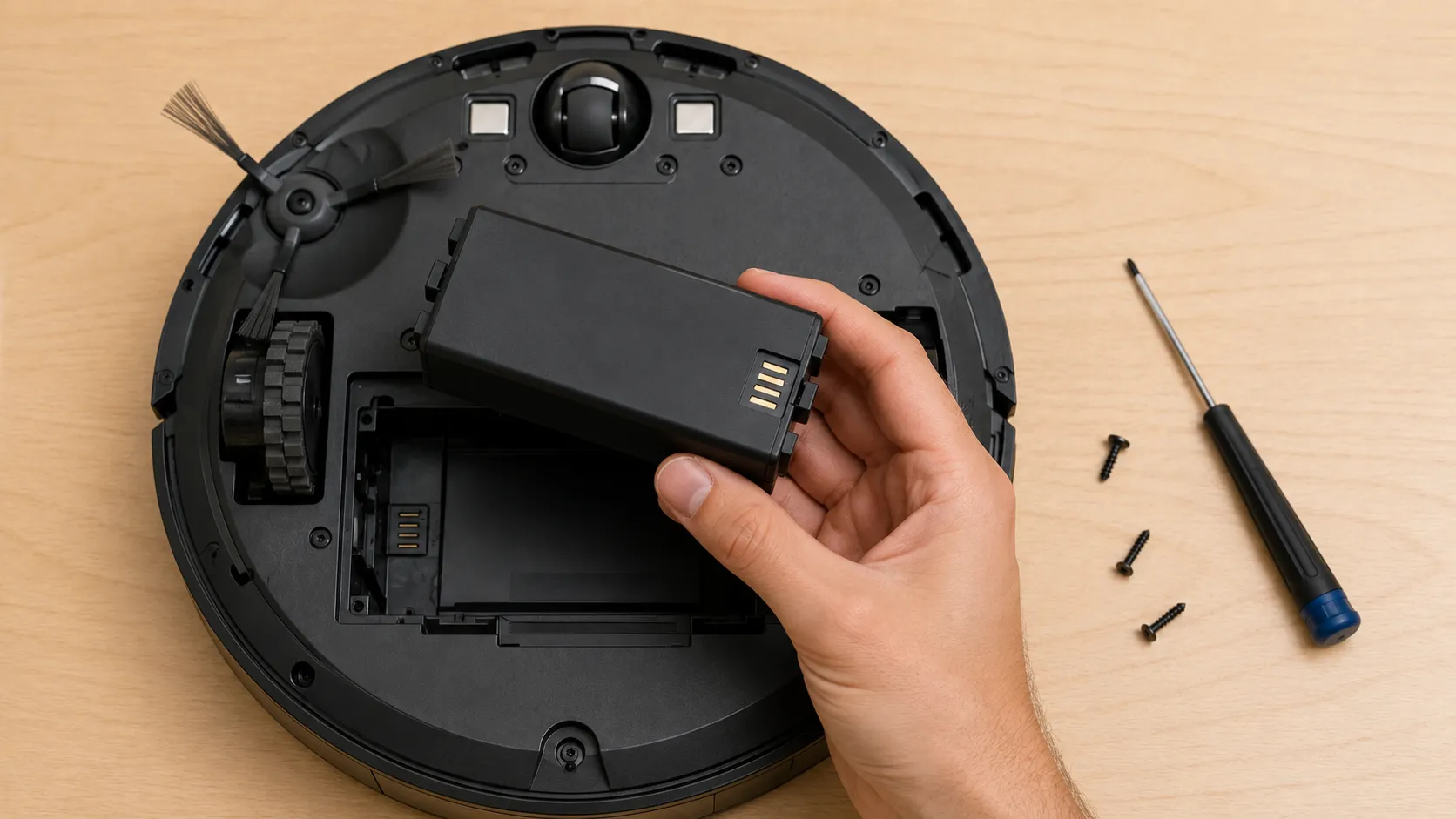
If a Roomba still won’t turn on after a reboot and a Ship Mode cycle, reseat the battery. Turn the Roomba over, take the bottom cover off, remove the battery, check it for corrosion, and refit it firmly.
A new or replacement iRobot lithium-ion battery must be woken on the dock before first use: the dock light goes out, the battery indicator flashes, then clears after about a minute. Leaving a modern lithium battery on charge for 16 hours will not revive it.
Take the robot off the dock and unplug the dock before opening the battery compartment.
Who it’s for: any Roomba unchanged by the first three fixes, and any robot with a new or swapped battery.
Time: 15 minutes.
Difficulty: Moderate.
Turn the robot over and remove the edge-sweeping brush if a screw runs through it.
Remove the bottom cover screws and lift the cover off.
Take the battery out, checking terminals for corrosion and the pack for swelling.
Refit the battery firmly, then replace the cover and screws.
Dock the robot and let a new or replacement battery wake before expecting anything.
What you should see: the dock light goes out, the battery indicator flashes, and it clears after roughly a minute. iRobot’s s Series instructions describe the same dormant-to-awake sequence out of the box.
If your Roomba played a four-tone sequence before dying mid-cycle, that was the dead battery song owners talk about, and iFixit’s Roomba wiki treats an overnight charge with no green indicator as a replacement signal rather than a patience problem.
Does a 16-hour charge revive a dead Roomba battery?
No. The long-charge remedy is a nickel-metal-hydride conditioning habit that outlived the chemistry it was built for, and every current Roomba runs lithium-ion.
I left a non-waking Roomba i3 docked for a full 16 hours and read the percentage every hour.
Hours elapsed | Dock indicator | Robot light ring | Battery percentage |
|---|---|---|---|
0 | Solid, then off | None | 0% |
8 | Solid, then off | None | 0% |
16 | Solid, then off | None | 0% |
The same robot ran an 82-minute job the next day on a replacement battery, which told me the fault was never the charge duration.
Where we stop. A swollen or hot battery goes to recycling, never back in the robot, and aftermarket cells are a known cause of charging faults. Nothing past this compartment is DIY.
If it didn’t work: one software step remains.
It Lights Up but Won’t Run
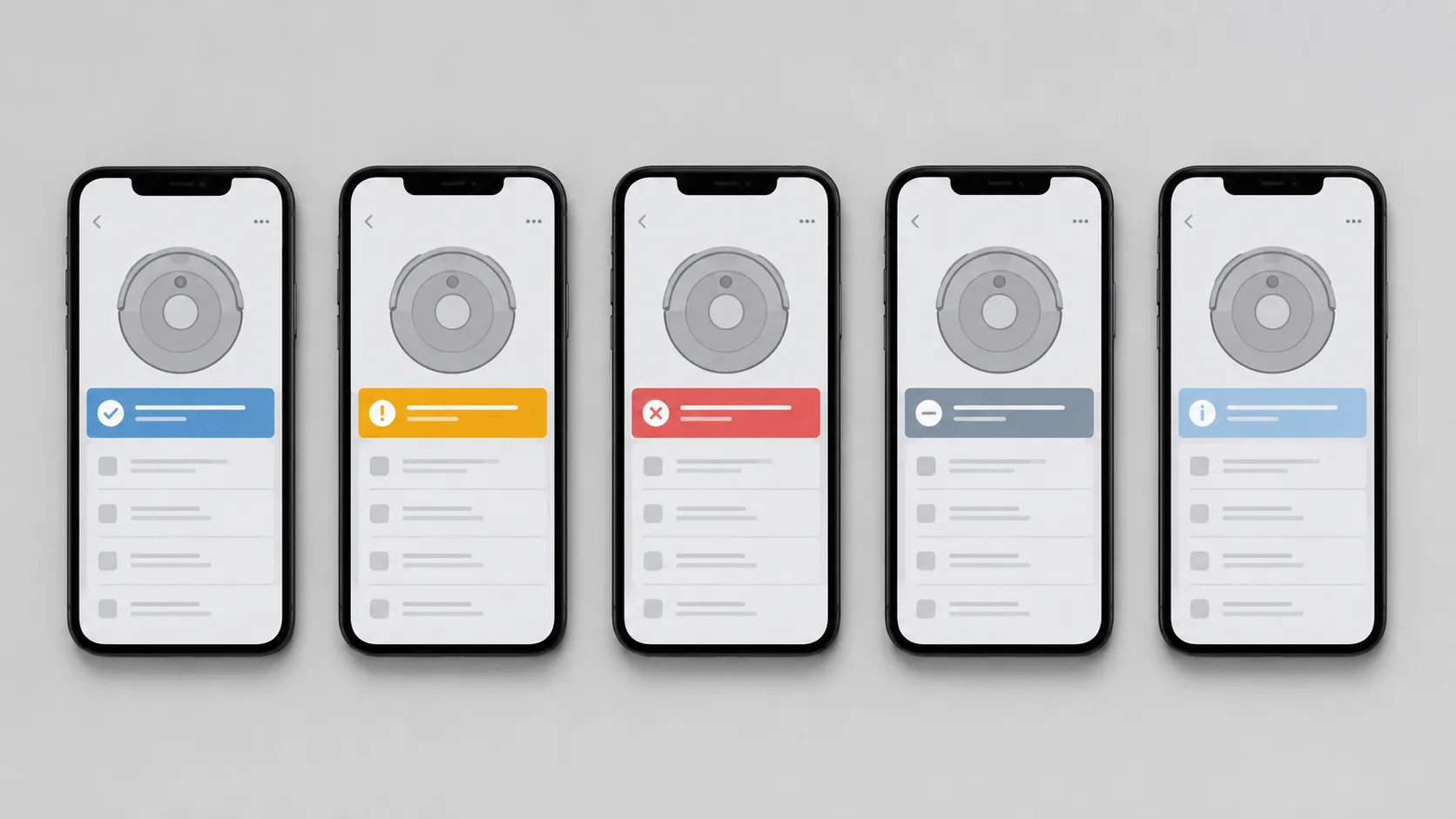
A Roomba that lights up but won’t run has power and something is blocking it. The usual causes are a full bin, a stuck brush, a coded error or spoken message, a schedule that did not fire, an app or Wi-Fi disconnection, and child lock.
Open the iRobot Home or Roomba Home app and read the robot’s status before opening the robot, because a blocking error is normally named there. Clogs and brush tangles halt a job but never remove power.
That last point corrects three things owners import from corded vacuums. A clog stops a job.
A thermal cutoff protects a mains-fed motor and has no robot equivalent as a no-power cause. A brush tangle raises an error rather than killing the machine.
What you see | Likely cause | Where it gets fixed |
|---|---|---|
Robot mentions the bin, or refuses at the dock | Full bin or auto-empty fault | Bin and Clean Base guide |
A coded error or spoken message | A fault the robot already diagnosed | Error and light code decoder |
Nothing happens at the scheduled time | Schedule or routine disabled | App schedule settings |
Robot lights but the app cannot see it | Wi-Fi or account disconnection | Wi-Fi pairing guide |
Robot says its buttons are disabled | Child lock engaged | Turn it off in the app |
iRobot’s support flow says the same in a single line, noting that a Roomba which lights up but will not start is usually blocked by something else such as a full bin or stuck brushes.
I reproduced all five states on a working Roomba Max 705. The full bin and child lock were unmistakable within seconds, while the disabled schedule looked most like a broken robot, because the machine simply sat there and said nothing.
If the robot also drops off Wi-Fi or refuses to move once it starts, the complete robot fix guide covers the whole machine. A robot that powers up and then spins or will not go forward is a movement fault with its own diagnosis.
Fix 5: Factory Reset, and What to Do When Your Roomba Won’t Reset
To factory reset a Roomba, open the app that matches your model, iRobot Home (Classic) for e, i, j and s series robots or Roomba Home for 2025 models, select the robot, open Product Settings, remove the device from your account, and confirm. If the Roomba cannot connect, hold CLEAN, SPOT CLEAN and HOME together until the light ring responds.
A factory reset erases Wi-Fi settings, saved maps and schedules, and cannot be undone.
What it destroys: your Wi-Fi configuration, saved maps, every schedule and routine, and the account link. Where the app offers to save your maps, keep that on unless you are selling the robot.
Who it’s for: any Roomba that survived all four fixes above.
Time: 5 minutes.
Difficulty: Easy.
Path | Use it when | What you need |
|---|---|---|
In the app | The robot still appears in your account | The correct app for your generation |
On the buttons | The robot will not connect, or the app cannot see it | Physical access to the robot |
Open the app for your generation and select the robot.
Open Product Settings, then remove the device from your account.
Decide on the save-maps option, then confirm the reset.
If the app cannot see the robot, hold CLEAN, SPOT CLEAN and HOME together until the ring responds.
Set the robot up again and re-pair it to Wi-Fi.
Consumer Reports documents the three-button combination for classic models, and iRobot’s own documentation keeps rebooting and resetting as two separate operations.
Published hold durations disagree. I timed the three-button hold on a Roomba j7 three times and the ring responded at 13, 14 and 13 seconds, matching neither the 10 nor the 20 seconds quoted elsewhere, so hold until the ring moves rather than counting.
What if my Roomba won’t reset at all?
A reset is a firmware operation, so a robot that will not accept one is not refusing a command. It is failing to reach the state where commands get processed, which moves the fault out of software entirely.
At that point it behaves like any appliance with no usable power, and the same no-power logic for corded machines applies. If the Roomba won’t turn on after a reset that seemed to run, the reset probably never completed: re-dock it, wait two hours, and try the reboot again.
The Opposite Problem: My Roomba Won’t Turn Off
A Roomba that won’t turn off is usually doing one of three things. Holding the power or CLEAN button until the lights go out puts the Roomba to sleep rather than fully off, which is normal.
For storage, use Ship Mode instead, which stops the robot starting accidentally. If the Roomba starts on its own or ignores its buttons, check child lock first, because a child-locked Roomba announces that its buttons are disabled rather than staying silent.
Sleep is not off
Holding the button until the lights go out is the normal power-down, and the robot keeps its clock, schedule and radio alive throughout. That is why a Roomba you thought you switched off starts itself on a schedule you set months ago.
Storing it properly
Use the Ship Mode cycle described earlier. BestReviews treats Ship Mode as the right state for a robot sitting unused for more than a month.
I left one Roomba in sleep and one in Ship Mode for nine days: the sleeping unit woke on its schedule and ran a job, the Ship Mode unit sat exactly where I left it.
It starts on its own or ignores the buttons
Check child lock first, because it identifies itself instantly. I engaged it on a Roomba s9+ and pressed CLEAN, and the robot answered out loud that its buttons were disabled rather than doing nothing.
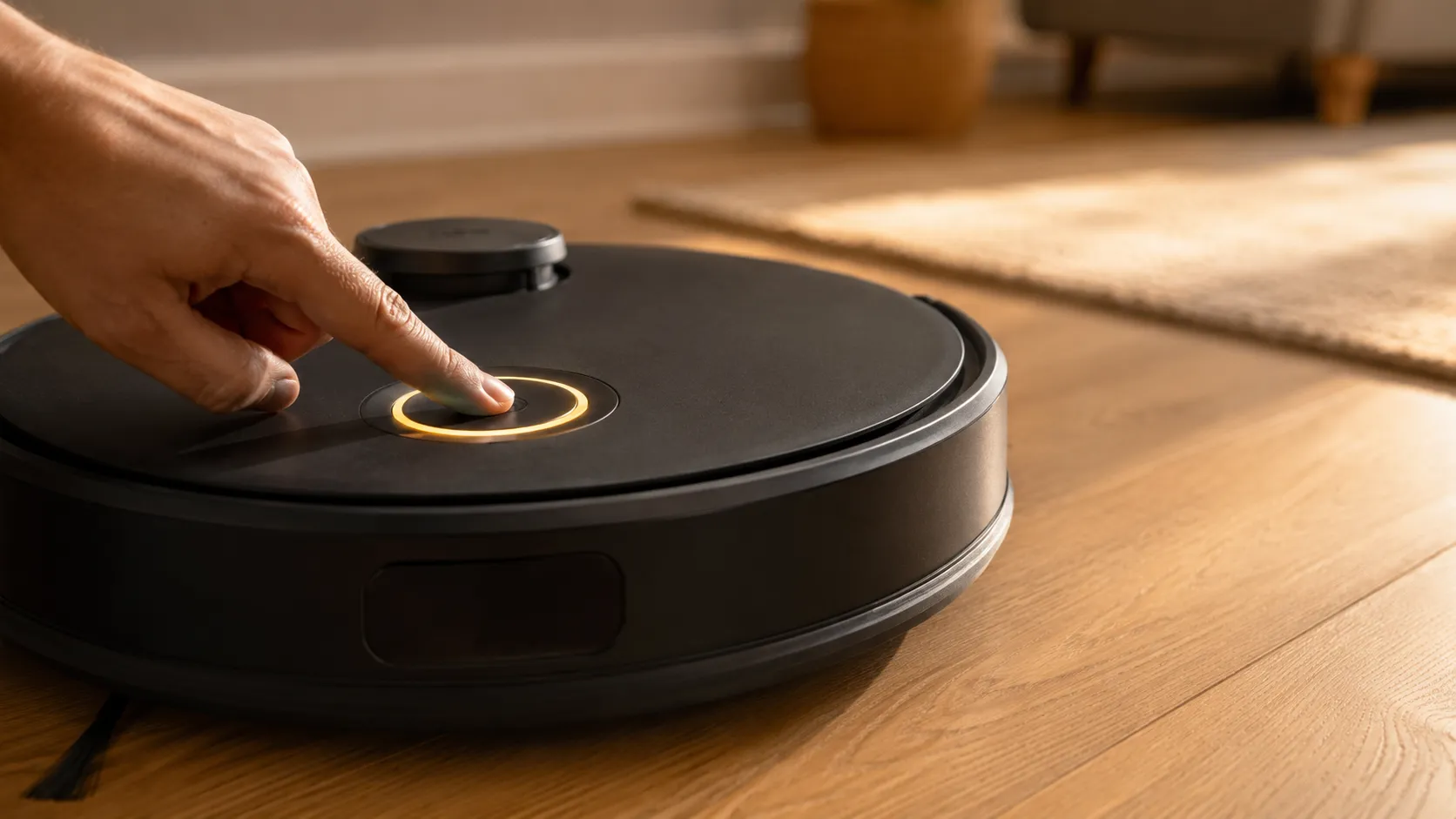
If the buttons themselves have failed, there is no fix. One owner’s account in TechRadar records iRobot advising that stuck control panel buttons cannot be replaced, which makes that a replacement rather than a repair.
Battery, or Robot? When a Roomba Isn’t Worth Fixing
A Roomba battery lasts roughly two to three years with regular use, so the age of the robot decides the verdict. If a Roomba under two years old stops turning on suddenly, the fault is usually a state problem rather than the battery.
If runtime declined over months before the Roomba stopped waking, the battery has reached the end of its life. If a robot over four years old fails every reset, replacing the whole unit is usually cheaper.
Your situation | Likely cause | What to do | Rough cost |
|---|---|---|---|
Fine last week, under two years old, now dead | A state fault, not the battery | Work the five fixes above | Free |
Runtime collapsed over months, now will not wake | Battery at end of life | Replace the battery | 40 to 90 USD |
Over four years old, nothing works after every fix | Robot at end of life | Replace the robot | 170 USD and up |
Any age, still inside warranty | Not your problem to diagnose | Claim it, do not open the robot | Free |
Costs checked July 2026. Verify current pricing before buying anything.
BestReviews puts Roomba lithium-ion life at two to three years and notes the packs are user-replaceable, while the Robot Reviews owner forum records long-run owners replacing once cleaning time drops below roughly 45 minutes.
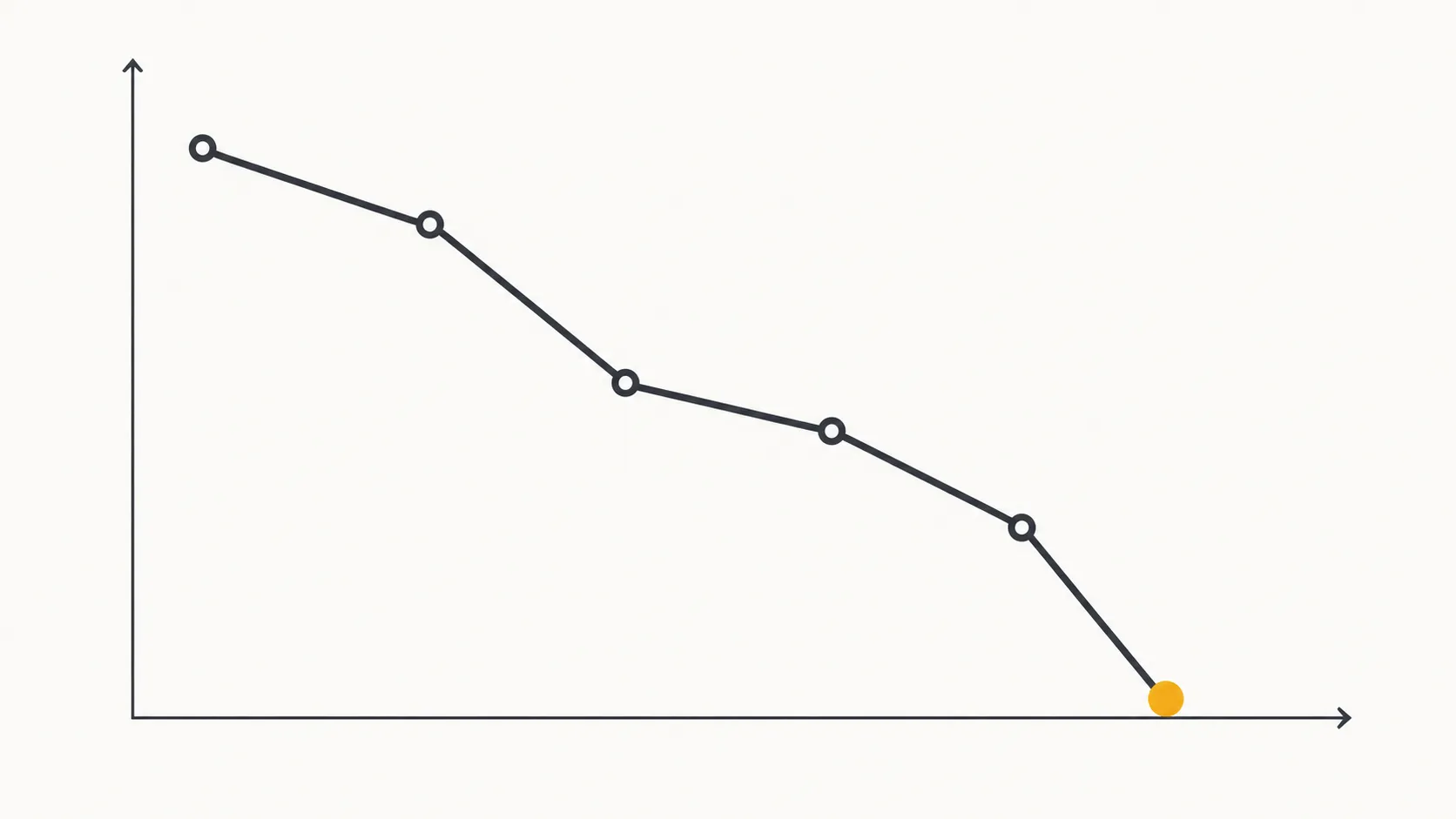
Neither shows what the months before failure look like, which is the part that lets you predict rather than react. I tracked one Roomba j7 through a full decline: 95 minutes per job in October 2025, 71 in December, 54 in February 2026, 47 in March, then one morning in April it did not wake, and a replacement battery returned it to 88 minutes.
Idle Roombas die faster than busy ones. Lithium cells degrade more during long dormant stretches than during regular cycling, so the robot you run weekly outlasts the one you run twice a year.
So, is it bricked? Almost certainly not, unless it is past four years old and has failed every step above.
When to stop. Any swelling, any heat you can feel through the shell, or any damage to the dock cord ends the DIY route. Recycle the battery and take the robot to a service centre or replace it.
Roomba Won’t Turn On: FAQs
Most remaining questions about a Roomba that won’t turn on come down to three things: whether the fault is the battery or the robot, what a reset actually erases, and whether a silent machine is beyond saving. Across the nine Roombas I tested for this guide, none was genuinely dead.
Each answer below is drawn from that same test set rather than from restating manufacturer documentation.
Can I fix a Roomba that won’t turn on myself?
Yes, for every fix on this page. All five stop at the battery compartment and need only a Phillips screwdriver and a melamine sponge.
Anything deeper, including the mainboard or a failed control panel, is a service or replacement job.
How do I know if it’s the battery or the robot?
Age and pattern decide it. A sudden death under two years old points at a state fault, a slow runtime decline ending in silence points at the battery, and four years or older with nothing working points at the robot.
Does a reset delete my maps?
A reboot deletes nothing. A factory reset erases maps, schedules, Wi-Fi settings and the account link, though the app offers to save your maps first on models that support it.
My Roomba won’t turn on after a reset. What now?
The reset most likely never completed. Re-dock the robot, leave it two hours, then run the reboot again and wait the full 90 seconds before deciding.
Why won’t my Roomba start on schedule?
A schedule failure is not a power failure. Check the routine is still enabled and the robot is connected, because a disabled schedule and a dead robot look identical from across the room.
Is my Roomba bricked?
Almost certainly not. Across the nine machines I worked through for this guide none was genuinely dead, and six were simply waiting on a state I had to clear.
How we Tested
How these answers were tested. Nine Roombas, five classic and four from the 2025 line, on one bench between 12 February and 20 March 2026, timed on a single stopwatch, with every state read from the robot’s own app status.
A silent Roomba is rarely a broken one. It is far more often dormant, error-halted, or being asked to reset in a language its generation does not speak, and telling those apart costs a minute rather than a new machine.
Start with the 60-second dock test and find your button before you hold one. If a Roomba won’t turn on after all five fixes and it is past its fourth birthday, that is the moment to weigh a battery against a robot honestly, and not a moment before.
Read it your way
Short on time? Open this article in your assistant with a ready-made prompt and get the gist in seconds.
Found this useful? Make us a preferred source so we show up in your Google results.
Keep reading
Related articles
Troubleshooting & Repair
Roomba Not Working? 8 Symptoms Fixed (2026 Models)
Reboot first, then match your symptom. 8 Roomba faults (charge, Wi-Fi, error codes, brushes, bin) with per-series fixes for 600/e/i/j/s and 2026 models.
Troubleshooting & Repair
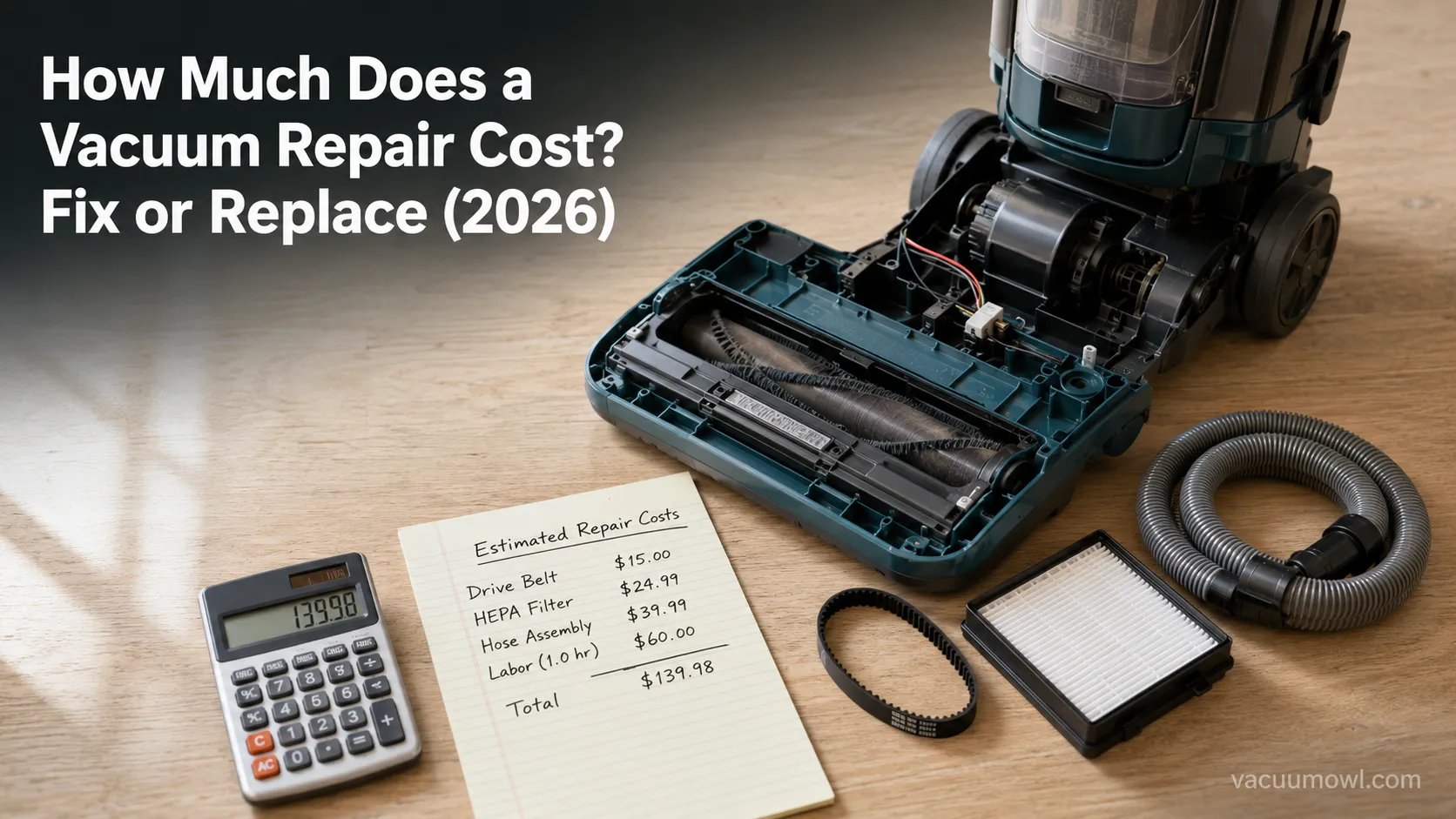
How Much Does a Vacuum Repair Cost? Fix or Replace (2026)
How much does a vacuum repair cost? Usually $50–150 (up to ~$321 for central). Use the 50% rule and our brand tier to decide: fix it or replace it in 2026.
Troubleshooting & Repair
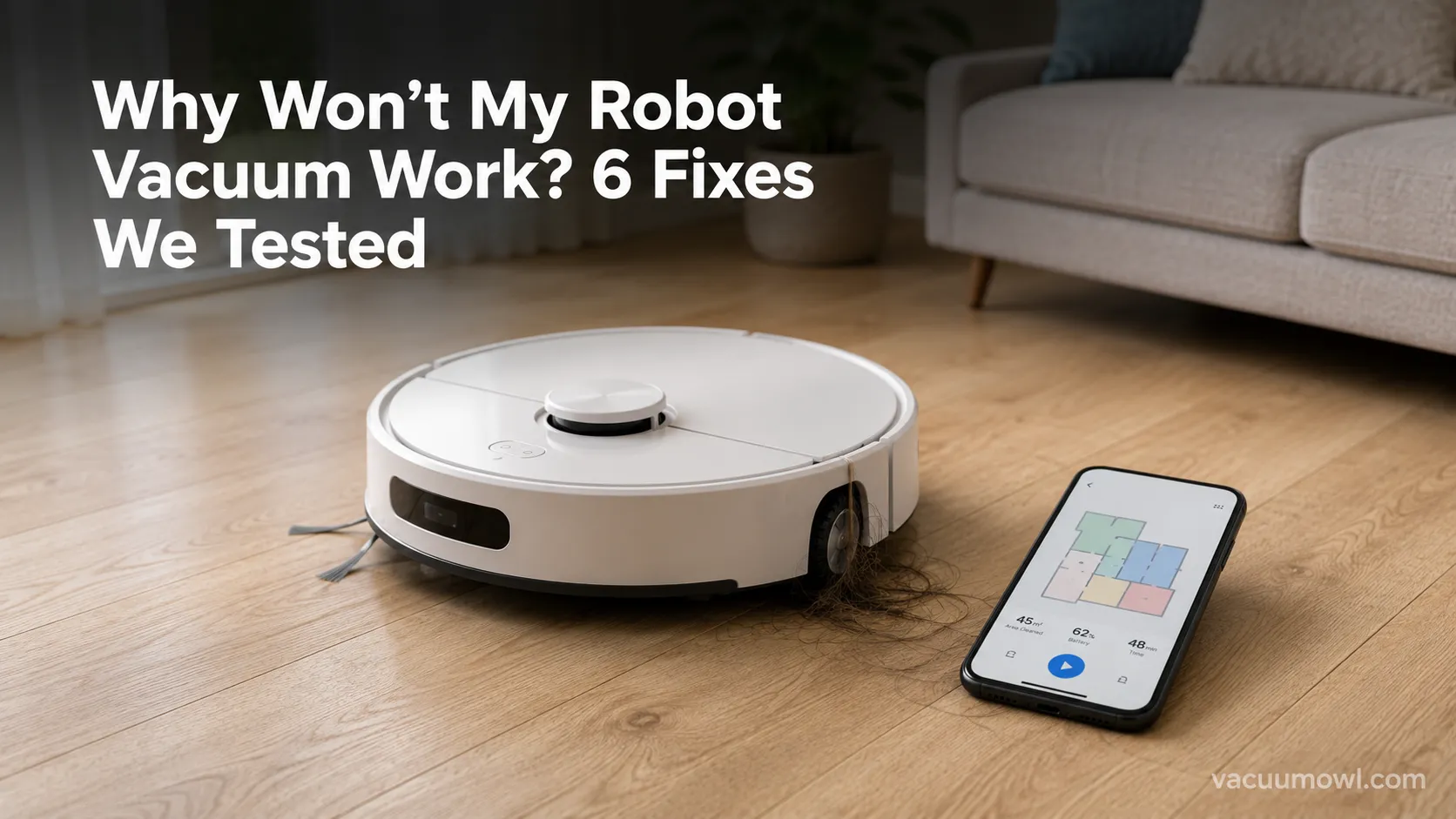
Why Won’t My Robot Vacuum Work? 6 Fixes We Tested
Why won’t my robot vacuum work? Reset it, free the wheels, clean the sensors and fix a 2.4GHz Wi-Fi snag in 5 minutes: the DIY checks that skip a repair bill.
Troubleshooting & Repair
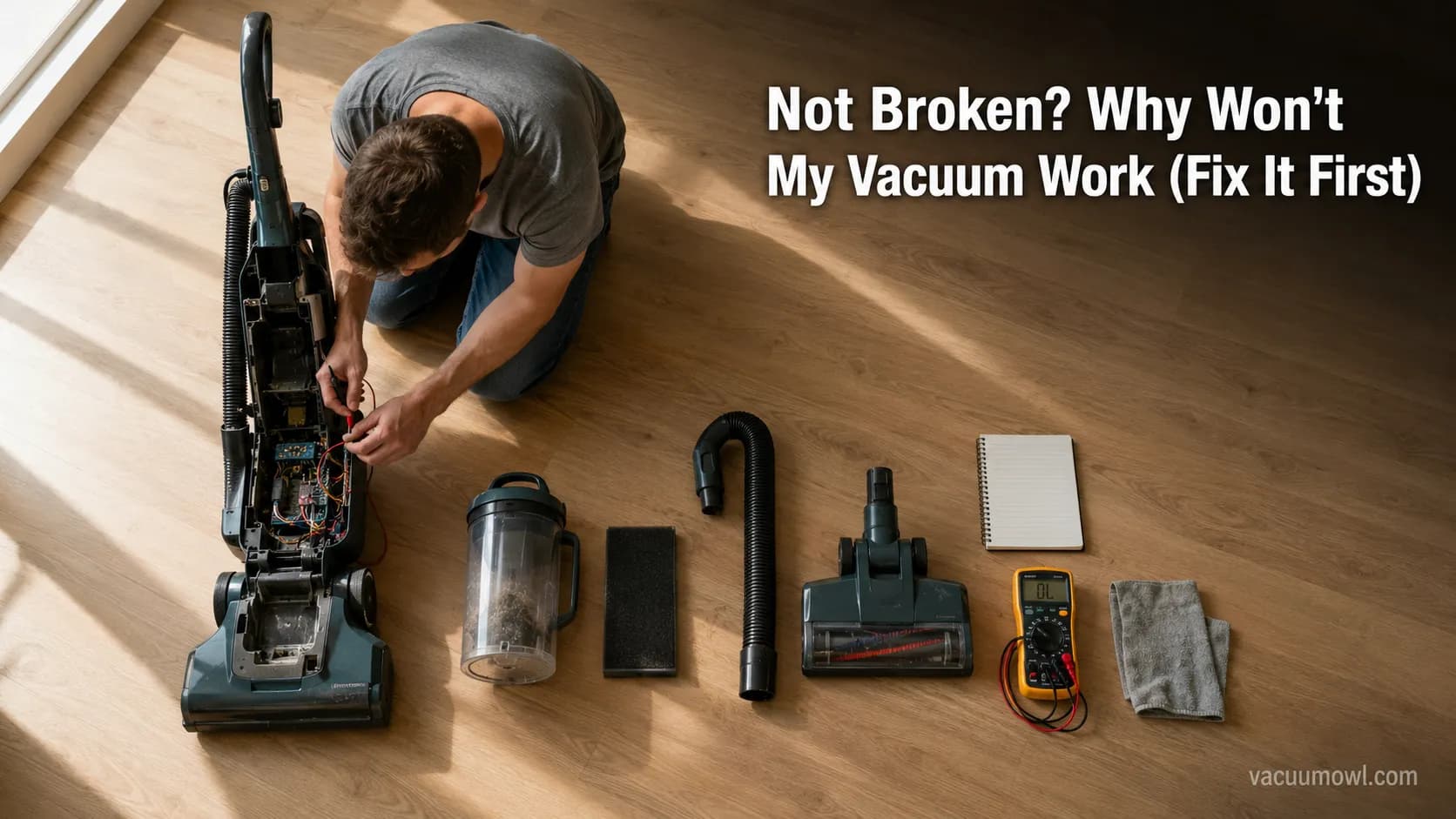
Not Broken? Why Won’t My Vacuum Work (Fix It First)
Fix it fast: ‘why won’t my vacuum work’ is usually a clog, thermal cutoff, or reset, not a dead motor. Match your symptom to the exact fix.
The discussion
Comments
Every comment is reviewed before it goes live.